

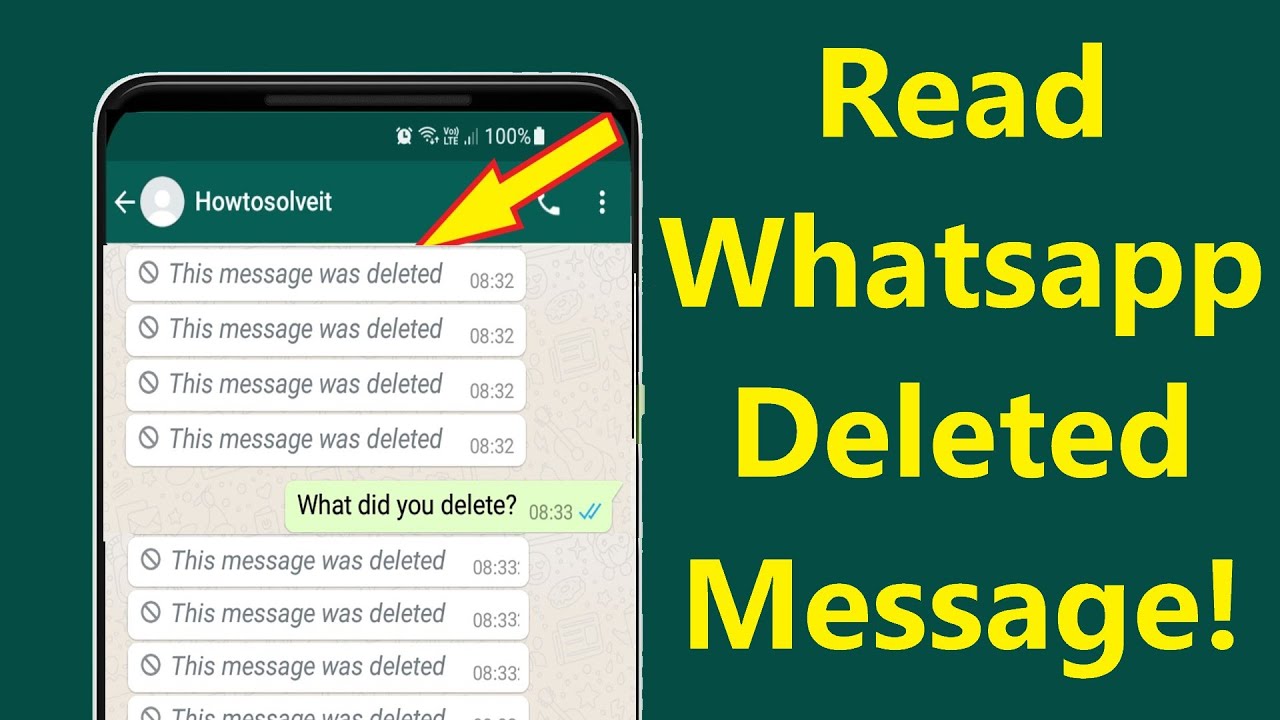
Many people are curious about how to read deleted WhatsApp messages, especially when the message was funny, useful, or important. Seeing “This message was deleted” can instantly make you wonder what was written and why it was removed.
While WhatsApp doesn’t provide a direct option to view deleted messages, there are a few methods that may help. Depending on your phone and settings, notification history, backups, or certain apps can sometimes help you recover messages that were deleted before you could read them.
What Happens When Someone Deletes a Message on WhatsApp?
When someone deletes a WhatsApp message, it doesn’t simply vanish without a trace. If they choose to remove it for everyone, you’ll see a notice saying “This message was deleted” in its place.
WhatsApp offers two main deletion options:
- Delete for Me: This removes the message only from the sender’s chat. Other participants can still see the original message.
- Delete for Everyone: This removes the message from both the sender’s and recipient’s chats. Instead, a “This message was deleted” notice appears. WhatsApp allows this option for a limited period after a message is sent.
So, while WhatsApp is designed to protect users’ privacy, it’s natural to wonder whether a deleted message can still be viewed. In some cases, your phone’s notification history or an existing WhatsApp backup may contain information from before the message was deleted.
Can You See Deleted WhatsApp Messages Without an App?
You may be wondering, “Can I view deleted WhatsApp messages without using an app?” The answer is generally no. WhatsApp doesn’t provide a built-in feature to recover messages after they have been deleted for everyone. Instead, you’ll only see the “This message was deleted” notice.
However, there are a couple of methods you can try without installing additional apps:
- Check Notification History (Android): Some Android phones save recent notifications. If a WhatsApp message appeared in your notifications before it was deleted, you may still be able to read part or all of the message through your notification history.
- Restore a WhatsApp Backup: If the message was included in an earlier backup stored on Google Drive or iCloud, restoring that backup may bring it back. Keep in mind that restoring an older backup can remove newer chats and messages created after that backup.
These options have limitations and may not work in every situation. If they don’t help, other methods involving third-party apps may be available, although they can raise privacy and security concerns.
Best Ways to See Deleted Messages on WhatsApp (With Apps)
If you’re looking for ways to view deleted WhatsApp messages, some third-party apps claim to save notifications or recover message content after it has been deleted. These tools can be useful in certain situations, but their features and reliability vary.
Before installing any such app, check its permissions and privacy policy carefully, as some may require access to your notifications or other personal data. Here are a few commonly discussed options:
Notification History Log (Android Only)
What it does:
This app keeps a record of notifications received on your phone, including WhatsApp messages. If it is installed before a message arrives, it may save the notification content in its history, allowing you to view it even if the original WhatsApp message is deleted later.
How to use it:
- Download and install Notification History Log from the Google Play Store.
- Once you receive a WhatsApp message, open the app and check your notification history. If the message is deleted later, its notification content may still be available in the log.
Can iPhone Users See Deleted WhatsApp Messages?
If you’re using an iPhone, viewing deleted WhatsApp messages can be more difficult than on Android. iOS has stricter restrictions on notification access, so apps such as WAMR and Notisave generally can’t provide the same functionality available on Android devices. Instead, iPhone users typically have to rely on options such as WhatsApp backups or previously received notifications.
However, there are still a few ways iPhone users can try to recover deleted messages:
1. Check iCloud Backup (if you have one)
One option for recovering deleted WhatsApp messages on an iPhone is to restore a recent iCloud backup. If the backup was created before the message was deleted, restoring it may bring the message back along with the other chats included in that backup.
How to use it:
- Open Settings > Your Name > iCloud > iCloud Backup and check the date of your latest backup.
- If the backup was created before the message was deleted, it may contain the missing message.
- Delete WhatsApp from your iPhone and reinstall it from the App Store.
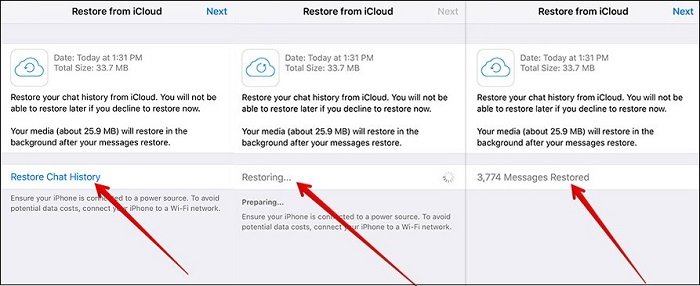
- Open WhatsApp and follow the setup process. When prompted, choose Restore Chat History to restore the available backup.
- Keep in mind that restoring an older backup may replace newer chats and messages that were created after the backup was made.
Important Tip:
Restoring from a backup will replace all your current chats with the ones from the backup. So, if you have newer messages, you may lose them in the process.
2. Check WhatsApp’s iCloud Backup Settings
If you want to avoid losing your current chats, first check when WhatsApp last created an iCloud backup. This helps you determine whether the deleted message may be included in an earlier backup.
How to check:
- Open WhatsApp and go to Settings > Chats > Chat Backup.
- Check the Last Backup date and time.
- If the backup was created before the message was deleted, it may contain the missing message. However, restoring an older backup can replace newer chat data, so make sure you understand the risks before proceeding.
Restore From iTunes Backup (if applicable)
If you regularly back up your iPhone to a computer, you may be able to recover deleted WhatsApp messages by restoring an earlier backup. On newer Macs, this process is handled through Finder instead of iTunes.
How to do it:
- Connect your iPhone to the computer where your backup is stored.
- Open iTunes on Windows or older macOS versions, or Finder on macOS Catalina and later.
- Select your iPhone and choose Restore Backup.
- Select a backup created before the message was deleted and follow the on-screen instructions to restore it.
Keep in mind that restoring an older backup can replace data added to your iPhone after that backup was created.
Important Tip: Just like iCloud, restoring from an iTunes backup will replace your current data with the data from the backup, so be careful.
While iPhone users don’t have the same app options as Android, you can still recover deleted messages with a backup. Remember, using backups means you might lose newer messages, so always think carefully before restoring.
Using WhatsApp Chat Backup to Recover Deleted Messages
If you’re looking for a way to recover deleted WhatsApp messages, chat backups can be one of the most useful options on both iPhone and Android. WhatsApp can back up your chats to iCloud on iPhone or Google Drive on Android, depending on your settings.
If a backup was created before the message was deleted, you may be able to restore it and recover the chats included in that backup. Keep in mind that restoring an older backup can replace newer messages and chat data.
How to Restore WhatsApp Chats on Android (Using Google Drive)
What it does:
Google Drive can store your WhatsApp chat backups, including messages and media, if backups are enabled. If you have a backup created before the message was deleted, you may be able to restore it and recover the chats included in that backup.
Steps:
- Open WhatsApp and go to Settings > Chats > Chat Backup to check your latest Google Drive backup.
- If the backup was created before the message was deleted, uninstall WhatsApp from your phone.
- Reinstall WhatsApp from the Google Play Store and verify your phone number.
- When prompted, tap Restore to recover the available chat history from the backup.
- Once the process is complete, your chats and media included in that backup will be restored.
- Keep in mind that restoring an older backup may replace newer messages that were received after the backup was created. Also, a message deleted before the backup was created will not be recovered.
Important Note:
Restoring a backup will bring back all messages from the backup date. This means any messages sent after that date may be lost, so be careful before restoring.
How to Restore WhatsApp Chats on iPhone (Using iCloud)
What it does:
On iPhone, WhatsApp can back up chats to iCloud when iCloud backup is enabled. If a backup was created before the message was deleted, restoring that backup may recover the message if it was included in the backup.
Steps:
- Open WhatsApp > Settings > Chats > Chat Backup and check the date of your latest backup.
- If the backup was created before the message was deleted, make sure it contains the chat history you want to recover.
- Delete WhatsApp from your iPhone and reinstall it from the App Store.
- Open WhatsApp and verify your phone number.
- When prompted, select Restore Chat History to restore your iCloud backup.
- Once the restoration is complete, the deleted message may be available if it was included in that backup.
Important: Restoring an older backup can replace newer chats and messages that were added after the backup was created.
Important Note:
Just like with Android, restoring from an iCloud backup means you might lose any new chats that came after the backup date, so think carefully before proceeding.
How Often Does WhatsApp Back Up My Messages?
By default, WhatsApp automatically backs up your chats daily, weekly, or monthly, depending on your settiYou can change your WhatsApp backup settings at any time. The steps vary slightly depending on whether you’re using Android or iPhone:
- Android: Open WhatsApp > Settings > Chats > Chat Backup and choose your preferred Google Drive backup frequency.
- iPhone: Go to WhatsApp > Settings > Chats > Chat Backup > Auto Backup and select how often you want your chats to be backed up.
If you want to reduce the risk of losing important messages, setting backups to daily can help ensure your recent chats are saved regularly. Keep in mind that backups may use cloud storage, so make sure you have enough available space.
Frequently Asked Question
Can I see deleted WhatsApp messages without using any app?
No, WhatsApp doesn’t have a built-in feature that lets you recover deleted messages. However, you might be able to see part of the message in your notifications if you have an Android phone and the message was received before it was deleted. Additionally, if you have a backup, you can restore it to recover deleted messages.
How do I recover deleted WhatsApp messages on Android?
To recover deleted messages on Android, you can use a Google Drive backup (if one is available). Uninstall WhatsApp, reinstall it, and choose to restore from your Google Drive backup during setup. This will bring back your chats from the date of the backup, including any deleted messages before that.
Can iPhone users recover deleted WhatsApp messages?
Yes, iPhone users can recover deleted messages by restoring a backup from iCloud. If you have a recent backup made before the message was deleted, you can delete and reinstall WhatsApp, then restore the chat history from iCloud.
Are there any apps to help recover deleted WhatsApp messages?
Yes, there are third-party apps like WAMR, Notisave, and Notification History Log that can help Android users recover deleted WhatsApp messages by saving notifications before they are deleted. Unfortunately, iPhone users don’t have such apps available.
Will restoring a backup delete my current WhatsApp messages?
Yes, restoring a backup will replace your current WhatsApp chats with the ones from the backup. This means any new messages received after the backup date will be lost. Make sure to carefully check the backup date before restoring it.
Can I prevent WhatsApp messages from being deleted in the future?
To prevent accidental deletion of messages, make sure to back up your chats regularly. WhatsApp allows you to set automatic backups, either daily, weekly, or monthly, depending on your preference. This way, you’ll always have a backup if you need to restore messages.
Conclusion
Although WhatsApp doesn’t offer a built-in option to directly view deleted messages, you may be able to recover them using chat backups. iPhone users can use iCloud, while Android users can use Google Drive, as long as the message was included in a backup created before it was deleted. Android users can also try third-party apps such as WAMR or Notisave, which may save WhatsApp notifications before messages are deleted.
However, restoring an older backup can replace newer chats and messages. To avoid losing important conversations in the future, consider enabling automatic WhatsApp backups and choosing a suitable backup frequency.
