

WhatsApp is one of the most widely used apps for staying connected with friends, family, and colleagues. Along with messaging and calling, WhatsApp also offers a useful feature known as the WhatsApp Scanner.
This feature allows users to scan QR codes to link WhatsApp with a computer and access their chats easily. It can also help users scan and share documents quickly. Simple, fast, and convenient, the WhatsApp Scanner makes everyday communication and file sharing much easier.
What is WhatsApp Scanner?
The WhatsApp Scanner is a built-in feature that allows users to scan QR codes directly through the WhatsApp app. It is mainly used to connect your WhatsApp account to a computer through WhatsApp Web. Simply scan the QR code displayed on your computer, and your WhatsApp chats will become accessible there.
This feature can be used to:
- Easily connect to WhatsApp Web
- Link your WhatsApp account with other devices
- Share your contact details through your personal QR code
- Scan another person’s QR code to quickly add their contact
How to Use WhatsApp Scanner Step-by-Step Guide
Using the WhatsApp Scanner is simple and takes only a few moments. It allows you to connect your WhatsApp account to your computer by scanning the QR code shown on the WhatsApp Web page. You do not need to enter your phone number or password manually. Just follow the steps below to scan the QR code and start using WhatsApp Web on your computer.
Step 1: Open WhatsApp on Your Phone
Open the WhatsApp app on your mobile phone and make sure you are logged in to the account you want to use on your computer. Keep your phone connected to the internet so the QR code scanning process works smoothly.
Step 2: Go to WhatsApp Web or Linked Devices
If you are using an Android phone, open WhatsApp and tap the three-dot menu in the top-right corner of the screen. From the menu that appears, select “Linked Devices” to continue with connecting your WhatsApp account to another device.
Step 3: Tap on “Link a Device”
Tap the “Link a Device” button to continue. WhatsApp will then open your phone’s camera, which will work as a QR code scanner. Keep the camera ready for the next step, where you will scan the QR code displayed on your computer.
Step 4: Open WhatsApp Web on Your Computer
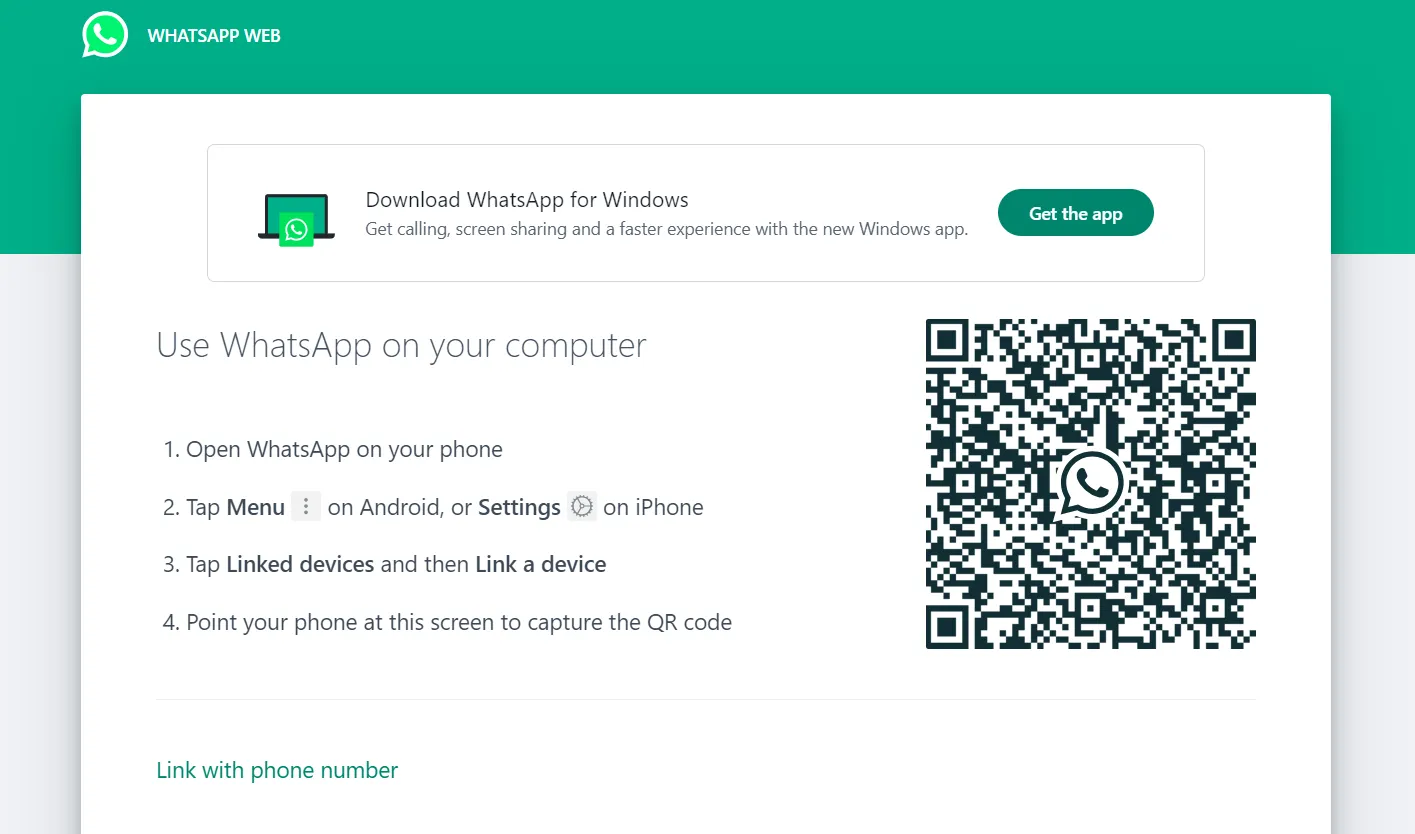
On your computer, open your preferred web browser and visit web.whatsapp.com. Once the page loads, you will see a QR code displayed on the screen. Keep this QR code visible so you can scan it using the WhatsApp app on your phone.
Step 5: Scan the QR Code
Point your phone’s camera at the QR code displayed on your computer screen and keep it within the scanner frame. After a few seconds, WhatsApp will verify the connection automatically, and your WhatsApp chats will appear on your computer, allowing you to send and receive messages from the browser.
Key Features of WhatsApp Scanner
| Feature | Description |
|---|---|
| QR Code Scanning | Scan QR codes to log in to WhatsApp Web or link devices. |
| Built-in Camera Access | Uses your phone’s camera without needing another app. |
| Link Multiple Devices | Connect your WhatsApp to more than one device. |
| Contact Sharing | Scan a friend’s QR code to save their contact easily. |
| Fast and Secure | Quick scanning with end-to-end encryption for safety. |
Benefits of Using WhatsApp Scanner
| Benefit | Description |
|---|---|
| Quick Access | Login to WhatsApp Web in seconds by scanning a QR code. |
| Easy Contact Sharing | Scan someone’s QR code to add their number without typing. |
| No Extra App Needed | Works inside the WhatsApp app, no need to install anything else. |
| Safe and Secure | WhatsApp uses encryption to protect your messages, even on the web. |
| Works on All Devices | Use WhatsApp Scanner with Android, iPhone, or computer easily. |
Frequently Asked Questions (FAQ)
What is the WhatsApp Scanner used for?
The WhatsApp Scanner is used to scan QR codes. Most people use it to open WhatsApp on a computer using WhatsApp Web. You can also scan someone’s QR code to add their contact quickly.
Do I need to install another app to use the WhatsApp Scanner?
No, you don’t need any extra app. The scanner is already built into the WhatsApp app.
Can I use WhatsApp Scanner to scan documents?
WhatsApp is not a full document scanner, but you can use your camera to take pictures of documents and send them in chats.
Why is the QR code not scanning on my phone?
Make sure your camera is working, the lens is clean, and there’s enough light. Also, check that the QR code is clear and not damaged.
Is it safe to use WhatsApp Scanner?
Yes, it is safe. WhatsApp uses end-to-end encryption to keep your chats private, even when you use WhatsApp Web.
Can I log out of WhatsApp Web after scanning the code?
Yes. You can log out from the computer or from your phone by going to Linked Devices and tapping “Log out.”
Conclusion
The WhatsApp Scanner is a convenient feature that makes using WhatsApp across different devices much easier. Whether you want to access your chats on a computer, connect WhatsApp to another device, quickly add a new contact, or use QR codes for sharing information, this feature can save you valuable time and effort.
One of the best things about the WhatsApp Scanner is that you don’t need to install any extra app. The scanner is already available within WhatsApp, making it simple and accessible for everyone. With just a few easy steps, you can open WhatsApp on your computer and start messaging seamlessly. Simply open WhatsApp, select Linked Devices, tap Link a Device, and scan the QR code displayed on your computer screen.
