

WhatsApp is one of the most popular messaging apps today. It helps people stay connected through texts, voice calls, video calls, and even file sharing. But did you know you can also share location on WhatsApp? Whether you’re meeting a friend or letting your family know you’re safe, this feature is super handy.
Types of Location Sharing on WhatsApp
WhatsApp offers two types of location sharing, each serving different needs. Whether you’re meeting a friend for coffee or sharing your whereabouts for safety, you can choose between these two options:
Send Your Current Location
- What is it?
This option shares a one-time snapshot of your current location. It’s perfect when you just want to show where you are at the moment, like when you’re meeting up with friends or sharing your exact spot. - How does it work?
When you tap Send Your Current Location, WhatsApp will automatically grab your location using your phone’s GPS and send a pin on the map to the person you’re chatting with. It doesn’t update, so once they receive it, that’s where you are!
Share Live Location
- What is it?
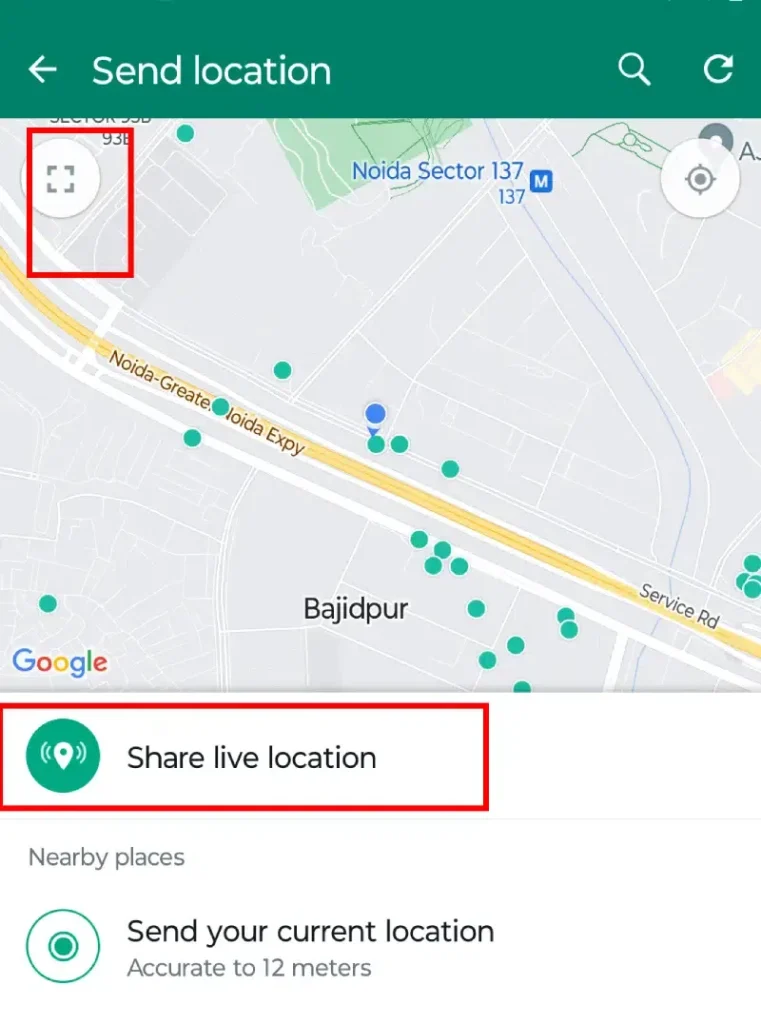
This feature allows you to share your real-time location with someone for a specific period. It updates every few seconds, so the other person can track your movements in real-time. This is useful when you’re on the move, like when you’re walking to a friend’s house or driving to meet someone, and want them to follow your journey. - How does it work?
When you choose Share Live Location, you can set a time limit—15 minutes, 1 hour, or 8 hours. During that time, your location will automatically update and show on the map, allowing the other person to see exactly where you are and how far away you are from them.
How to Share Location on WhatsApp (Android Users)
Sharing your location on WhatsApp is super simple, even for beginners. Whether you want to share your current spot or let someone track your journey in real-time, here’s how you can do it on Android.
Step-by-Step Guide:
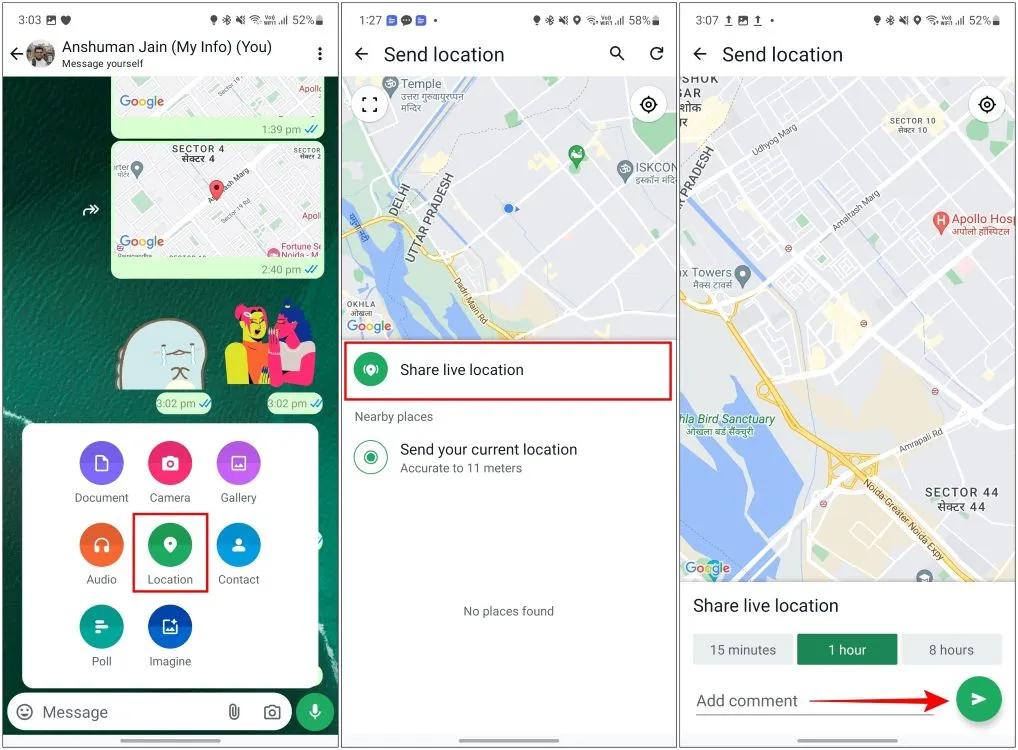
- Open WhatsApp: First, open the WhatsApp app on your Android phone and go to the chat with the person or group you want to share your location with.
- Tap the Paperclip Icon: At the bottom of your screen, tap the paperclip icon 📎. This will open a menu with different options.
- Choose ‘Location’: From the menu, select Location. WhatsApp will ask for permission to access your device’s location if you haven’t granted it yet.
- Allow Location Access: If prompted, tap Allow to give WhatsApp permission to use your phone’s GPS and share your location.
- Select Your Sharing Option: Now, you have two options:
- Send your current location – This shares a pin of where you are right now.
- Share live location – This lets the recipient track your real-time movements. You can choose how long you want to share it for: 15 minutes, 1 hour, or 8 hours.
- Send your current location – This shares a pin of where you are right now.
How to Share Location on WhatsApp (iPhone Users)
Sharing your location on WhatsApp with an iPhone is simple and quick. Whether you want to share your current location or allow someone to track your movements in real-time, follow these easy steps.
Step 1: Open WhatsApp and Choose a Chat
Start by opening the WhatsApp app on your iPhone. Then, navigate to the chat where you want to share your location.
Step 2: Tap the Plus (+) Icon
At the bottom-left corner of the screen, tap the plus (+) icon. This will open a menu with several options.
Step 3: Select ‘Location’
From the menu that appears, tap Location. WhatsApp will then ask for permission to access your iPhone’s location. If prompted, tap Allow to enable location sharing.
Step 4: Choose Your Location Sharing Option
Once location access is enabled, you’ll see two options:
- Send Your Current Location: This will send a pin showing where you are right now.
- Share Live Location: This option allows you to share your real-time location for a set period (15 minutes, 1 hour, or 8 hours).
Step 5: Tap ‘Send’
After selecting your preferred option, tap Send, and your location will be shared in the chat.
How to Stop Sharing Live Location
If you’ve been sharing your live location on WhatsApp and want to stop, it’s very simple to do. Whether you’re done meeting up with someone or just want to end the sharing for privacy, here’s how you can turn it off.
For Android Users:
- Open WhatsApp and go to the chat where you’re sharing your live location.
- Tap on the live location message in the chat.
- A screen will appear showing your live location with an option to Stop Sharing.
- Tap Stop Sharing, and your live location will no longer be visible to the recipient.
For iPhone Users:
- Open WhatsApp and go to the chat where you’re sharing your live location.
- Tap on the live location message in the chat.
- A screen will appear with the option to Stop Sharing.
- Tap Stop Sharing, and the live location sharing will end immediately.
Troubleshooting Tips
If you’re having trouble sharing your location on WhatsApp, don’t worry! Here are some simple troubleshooting tips to help you fix common issues.
Location Access Denied
Sometimes WhatsApp might not be able to access your location. To fix this:
- Android: Go to your phone’s Settings > Location > App permissions and make sure WhatsApp is allowed to access your location.
- iPhone: Go to Settings > Privacy > Location Services, find WhatsApp, and ensure it’s set to While Using the App or Always.
GPS Is Not Working
If your phone’s GPS isn’t working properly, you might see an incorrect location. Try these steps:
- Enable Location: Make sure your phone’s GPS is turned on. Swipe down the notification panel (Android) or go to Settings > Privacy > Location Services (iPhone) to check.
- Turn on High Accuracy Mode: On Android, go to Settings > Location > Mode and select High Accuracy for better location accuracy.
Location Not Updating in Real-Time
If your live location isn’t updating:
- Check Your Internet Connection: Make sure you have a stable mobile data or Wi-Fi connection. Live location sharing requires an active internet connection to update in real-time.
- Restart WhatsApp: Sometimes, simply closing and reopening WhatsApp can fix the issue.
App Needs an Update
Outdated versions of WhatsApp might cause location-sharing issues. Check if there’s an update available:
- Android: Go to the Google Play Store, search for WhatsApp, and tap Update if available.
- iPhone: Go to the App Store, search for WhatsApp, and tap Update if needed.
Reboot Your Phone
If none of the above solutions work, try restarting your phone. This can often solve location-sharing issues caused by temporary glitches.
Common FAQs on Location Sharing on WhatsApp
Can I share my location on WhatsApp without the other person knowing?
No, when you share your location on WhatsApp, the recipient will always see your location. If you want to stop sharing, you can turn off live location sharing at any time.
How accurate is WhatsApp’s location sharing?
WhatsApp uses your phone’s GPS to share your location, so it’s usually quite accurate. However, it depends on your phone’s GPS settings and your internet connection. For better accuracy, enable High Accuracy Mode in your phone’s location settings.
Can I share my location on WhatsApp without internet?
No, location sharing requires an active internet connection, either through mobile data or Wi-Fi. Without it, you won’t be able to send or receive location updates.
How long can I share my live location on WhatsApp?
You can choose to share your live location for 15 minutes, 1 hour, or 8 hours. After that time, the location sharing will automatically stop.
What if my location is not updating in real-time?
If your live location isn’t updating, it might be due to a weak internet connection or an issue with your phone’s GPS. Ensure you have a stable internet connection and check your phone’s location settings.
Can I share my location in a group chat?
Yes, you can share your location in both individual chats and group chats on WhatsApp. Just follow the same steps for either option.
Why can’t I share my location on WhatsApp?
If you’re having trouble sharing your location, make sure that WhatsApp has permission to access your location. Also, check that your GPS is working and your phone has a stable internet connection.
Can I share my location without opening WhatsApp?
No, you need to open WhatsApp and select the location-sharing option in the chat. However, some phones let you share your location directly from the device’s location settings, but it will still need WhatsApp to send it to the recipient.
Can I stop sharing my live location after sending it?
Yes, you can stop sharing your live location anytime by going back to the chat and tapping Stop Sharing on the location message.
Final Thoughts
Sharing your location on WhatsApp is a super helpful and easy feature that keeps you connected with friends, family, and colleagues. Whether you’re meeting someone in person or just want to share your real-time location for safety reasons, this feature is simple to use on both Android and iPhone devices.
It’s important to remember that you can share your location in two ways: current location (one-time pin) and live location (real-time tracking). Both options are easy to access and can be turned off at any time for privacy.
If you ever face issues with location sharing, the troubleshooting tips provided should help resolve most problems. Just ensure your GPS and internet connection are working correctly, and WhatsApp has permission to access your location.
