


WhatsApp Web allows you to access your WhatsApp account on a computer, making it easier to send messages, share documents, download files, and manage conversations while working. However, if you use WhatsApp Web in an office, classroom, café, or other shared place, people sitting or standing nearby may be able to read your messages by looking at your screen.
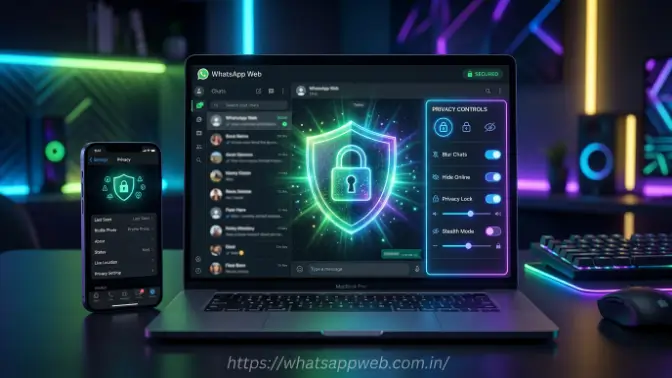
A privacy extension for WhatsApp Web helps protect your conversations from unwanted viewing. It can blur messages, contact names, profile pictures, and shared photos or videos. When you need to read something, you can move your mouse over the blurred content to reveal it temporarily. This adds an extra layer of visual privacy and helps keep personal or sensitive chats hidden from people around you.
What Is a Privacy Extension for WhatsApp Web?
A privacy extension for WhatsApp Web is a small browser tool that helps keep your chats private while you use WhatsApp on a computer. You can install it through your browser’s extension store, and it adds extra privacy controls to the WhatsApp Web screen.The extension usually works by blurring selected information. For example, it can hide your messages, chat previews, contact names, profile pictures, photos, and videos. This makes the content difficult for people nearby to read or view. When you want to see the hidden information, many extensions allow you to reveal it temporarily by moving your mouse cursor over the blurred area.
How Does a WhatsApp Web Privacy Extension Work?
After installing a WhatsApp Web privacy extension in your browser, it becomes active when you open WhatsApp Web. The extension adds privacy controls that allow you to choose which information should remain visible and which content should be hidden.
For example, you can blur all chat messages while keeping contact names visible. You may also choose to hide contact names, profile pictures, message previews, photos, videos, and other media. Most extensions allow you to adjust these settings based on your privacy needs.
Why Use a Privacy Extension for WhatsApp Web?
A privacy extension for WhatsApp Web is useful when other people can easily see your computer screen. Although WhatsApp Web allows you to manage messages and share files conveniently from a laptop or desktop, your private conversations may become visible to people sitting or standing nearby.For example, you may use WhatsApp Web in an open office, classroom, café, coworking space, or shared home environment. In these situations, someone could accidentally read your messages, see a contact’s name, or view private photos and videos displayed on your screen.
It can help reduce accidental exposure in situations such as:
- Working in an open office
- Using a laptop in a café or public area
- Sharing a computer with family members
- Using WhatsApp Web in a classroom or computer lab
- Presenting or screen-sharing during meetings
- Leaving your computer unattended for a short time
The extension does not stop someone from accessing your account or hacking your device. Instead, it helps prevent casual viewing, sometimes called “shoulder surfing,” where someone reads information directly from your screen.
Key Features to Look for in a WhatsApp Web Privacy Extension
Not every WhatsApp Web privacy extension provides the same level of protection or customization. Some extensions only blur chat messages, while others can also hide contact names, profile pictures, message previews, photos, videos, and other sensitive information.Before installing an extension, think about how and where you use WhatsApp Web. For example, if you work in a shared office or public place, you may need an extension that can blur most parts of the screen. If you only want to prevent people from reading your messages, a basic message-blurring feature may be enough.
Blur Messages and Chat Previews
The Blur Messages and Chat Previews feature helps keep your WhatsApp conversations hidden from people who may be looking at your computer screen. When message blurring is enabled, the text inside an open chat becomes unclear or completely hidden. This prevents someone sitting nearby from easily reading your private or sensitive messages.
Some WhatsApp Web privacy extensions also blur the latest-message previews shown in the chat sidebar. These previews often display a short part of the most recent message, even when the conversation is not open. For example, a message preview may reveal personal information, work details, passwords, addresses, payment information, or private discussions.
Hide Contact Names and Profile Pictures
Contact names and profile pictures can reveal personal, professional, or business-related information, even when the actual chat messages are hidden. For example, a person looking at your screen may identify a family member, customer, employee, manager, client, or business contact simply by seeing their name or profile photo.
A good WhatsApp Web privacy extension should allow you to blur contact names and profile pictures separately. This gives you greater control over what remains visible on your screen. You can choose to hide only contact details while keeping chat messages readable, or blur messages while leaving names visible for easier navigation.
Blur Photos, Videos, and Media
Photos, videos, stickers, documents, and other media shared through WhatsApp can contain private or sensitive information. Even if your chat messages are blurred, visible media files may still reveal personal details, business information, private moments, or confidential content to people nearby.
A WhatsApp Web privacy extension with a media blur feature helps prevent this type of accidental exposure. When the feature is enabled, images and videos appear blurred or hidden instead of being displayed clearly on the screen. This makes it more difficult for someone looking over your shoulder to view the content.
Read also: Jio Customer Care WhatsApp Number: Contact Support
How to Install a Privacy Extension for WhatsApp Web
Installing a privacy extension for WhatsApp Web is usually a quick and simple process. Most extensions can be added directly from your browser’s official extension store and start working when you open WhatsApp Web. However, you should choose the extension carefully because browser extensions may request permission to access or interact with websites you use.Before installing an extension, check the developer’s information, user reviews, ratings, update history, and privacy policy. These details can help you understand whether the extension is actively maintained and whether other users have reported any problems.
Step 1: Open Your Browser’s Official Extension Store
The first step is to open the official extension or add-on store for the browser you use. These stores provide browser extensions that are designed to work with specific browsers and usually include useful information such as the developer’s name, user reviews, ratings, permissions, privacy details, and update history.
If you use Google Chrome, search for the extension in the Chrome Web Store. Microsoft Edge users can visit the Microsoft Edge Add-ons store, while Firefox users can use the Firefox Add-ons website.
Step 2: Search for a Trusted WhatsApp Privacy Extension
A high rating alone does not guarantee that an extension is safe. Read the description and understand what access it requires.Using an official browser store is generally safer than downloading extension files from unknown websites. Official stores may review extensions and provide tools for reporting suspicious or harmful software. They also make it easier to check whether an extension is actively maintained and updated.
Before installing a WhatsApp Web privacy extension, read its description and review the permissions it requests. The extension may need access to WhatsApp Web to blur messages, hide contact details, or apply other privacy settings. However, be cautious if an extension requests permissions that do not appear necessary for its purpose.
Step 3: Add the Extension to Your Browser
After choosing a trusted WhatsApp Web privacy extension, select the installation button shown in your browser’s official extension store. For example, Google Chrome usually displays an “Add to Chrome” button, while Microsoft Edge and Firefox may use different installation options.
Your browser may then show a confirmation window explaining the permissions requested by the extension. Read these permissions carefully before approving the installation. A WhatsApp Web privacy extension may need permission to access the WhatsApp Web page so it can blur messages, hide contact names, protect media, or apply other privacy settings.
How to Use the Extension Safely
A privacy extension for WhatsApp Web can help hide messages, contact details, profile pictures, and media from people nearby. However, you should install and manage the extension carefully because browser extensions may request access to the websites you use.Before installing an extension, check the developer’s information, user reviews, ratings, update history, and privacy policy. These details can help you determine whether the extension is trustworthy and actively maintained. Avoid installing extensions from unknown websites or developers that provide little information about their software.
Review Browser Permissions
Before installing a privacy extension for WhatsApp Web, carefully review the permissions it requests. Browser permissions determine what an extension is allowed to access or do while it is installed.
Because a WhatsApp Web privacy extension needs to blur messages, hide contact names, protect profile pictures, or change other visual elements, it may require permission to interact with the WhatsApp Web page. This type of access can be necessary for the extension to apply its privacy features correctly.
Install Only from Official Browser Stores
When installing a privacy extension for WhatsApp Web, use your browser’s official extension or add-on store whenever possible. Official stores usually provide important information about an extension, including the developer’s name, user ratings, reviews, permissions, privacy details, and update history.
These details can help you evaluate whether an extension appears trustworthy and is actively maintained. User reviews may also reveal common problems, such as technical errors, compatibility issues, unwanted behavior, or privacy concerns.
Check the Developer’s Privacy Policy
Before installing a privacy extension for WhatsApp Web, review the developer’s privacy policy to understand how the extension handles your information. A privacy policy may explain what data the extension collects, why the data is collected, how it is used, and whether it is shared with third parties.
Pay attention to whether the developer mentions collecting WhatsApp messages, chat content, contact information, browsing activity, device details, or other personal data. Some privacy extensions state that they do not collect or store WhatsApp messages and that their privacy features work locally inside the browser. However, you should review the current policy yourself because privacy practices may change over time.
Privacy Extension vs. WhatsApp Web Security
A privacy extension for WhatsApp Web can improve visual privacy, but it is not a complete security solution. Its main purpose is to hide or blur information displayed on your screen, such as chat messages, contact names, profile pictures, message previews, photos, and videos.For example, if you are working in an office, café, classroom, or shared space, message blurring can make it difficult for people nearby to read your conversations. This helps reduce accidental exposure and protects your chats from casual viewing or someone looking over your shoulder.
For stronger protection, also:
- Lock your computer when leaving it
- Log out of WhatsApp Web on shared devices
- Review linked devices regularly
- Enable WhatsApp two-step verification
- Avoid sharing verification codes with anyone
Two-step verification adds an extra PIN-based layer to help protect a WhatsApp account.
Common Problems and Quick Solutions
A WhatsApp Web privacy extension may sometimes stop working correctly or cause small display problems. These issues can occur because WhatsApp Web changes its interface, the browser needs an update, or another extension is creating a conflict.In most cases, you can solve the problem by refreshing WhatsApp Web, checking the extension settings, or updating your browser. The following are some common problems and quick solutions.
The Blur Effect Is Not Working
If the blur effect is not working on WhatsApp Web, the problem may be caused by an outdated extension, disabled privacy settings, a temporary browser issue, or a recent change to the WhatsApp Web interface.
First, refresh the WhatsApp Web page. This may reload the extension and allow the blur feature to work correctly. If the problem continues, open the extension settings and check whether the options for blurring messages, chat previews, contact names, profile pictures, or media are enabled.
WhatsApp Web Looks Broken
If WhatsApp Web looks unusual after installing a privacy extension, the problem may be caused by a conflict between browser extensions. Some extensions change the appearance or behavior of WhatsApp Web, and using several WhatsApp-related add-ons at the same time may cause layout problems.
For example, chat messages may appear in the wrong position, buttons may disappear, images may not load correctly, or parts of the WhatsApp Web interface may look distorted. Blog These issues can happen when two extensions try to modify the same section of the page.
Common Mistakes to Avoid
A privacy extension for WhatsApp Web can help hide messages and other sensitive information, but incorrect installation or unsafe use may create privacy, security, or performance problems. Understanding common mistakes can help you use the extension more safely and effectively.One common mistake is downloading extensions from unofficial or unknown websites. These files may be outdated, modified, or potentially harmful. Whenever possible, install extensions from your browser’s official extension store and review the developer information before adding them.
Cover:
- Installing extensions from unofficial sources
- Ignoring permissions
- Assuming blur effects provide complete security
- Leaving WhatsApp Web open on a shared computer
- Using outdated extensions
- Installing too many WhatsApp Web add-ons
Finally, avoid installing too many WhatsApp Web extensions. Multiple add-ons can create conflicts, reduce browser performance, or increase privacy risks.
Is a Privacy Extension for WhatsApp Web Worth Using?
A privacy extension for WhatsApp Web can be worth using if you regularly access your chats on a computer in places where other people may see your screen. It is especially useful in open offices, classrooms, cafés, coworking spaces, shared homes, or other environments where private conversations may be visible to people nearby.These extensions can blur chat messages, contact names, profile pictures, message previews, photos, videos, and other media. Some also include useful features such as hover-to-reveal controls, customizable privacy settings, password protection, or automatic screen locking.
Provide a balanced conclusion:
- Useful for offices and public environments
- Helpful for reducing accidental exposure
- Easy to customize
- Not a replacement for device security or safe browsing habits
Include the main keyword naturally.
Frequently Asked Questions
Is a privacy extension for WhatsApp Web safe?
It can be safe when installed from an official browser store and provided by a trustworthy developer. Review permissions, privacy information, update history, and user feedback before installing.
Can a WhatsApp Web extension hide messages?
Yes. Many privacy extensions can blur messages, chat previews, contact names, profile pictures, and media. Some reveal the content only when you hover over it.
Does a privacy extension work on Chrome and Edge?
Many WhatsApp Web privacy extensions are designed for Chromium-based browsers, including Google Chrome and Microsoft Edge. Check the extension’s supported-browser information before installation.
Can I lock WhatsApp Web with a password?
Some privacy extensions include password-based screen locks and automatic locking after inactivity. This feature is not available in every extension.
Does blurring WhatsApp messages provide complete security?
No. Blurring protects against casual viewing but does not prevent account compromise, malware, unauthorized device access, or browser-session theft. Use it alongside proper account and device security.
Conclusion
A privacy extension for WhatsApp Web can be a useful tool for keeping your chats less visible when using a computer in an office, classroom, café, coworking space, or shared environment. Features such as message blur, contact-name protection, media hiding, hover-to-reveal controls, and screen locking can help reduce accidental exposure and protect sensitive information from people nearby.
However, a privacy extension mainly improves visual privacy and should not be considered a complete security solution. It cannot protect your WhatsApp account if someone gains access to your unlocked computer, browser, or active WhatsApp Web session.
