

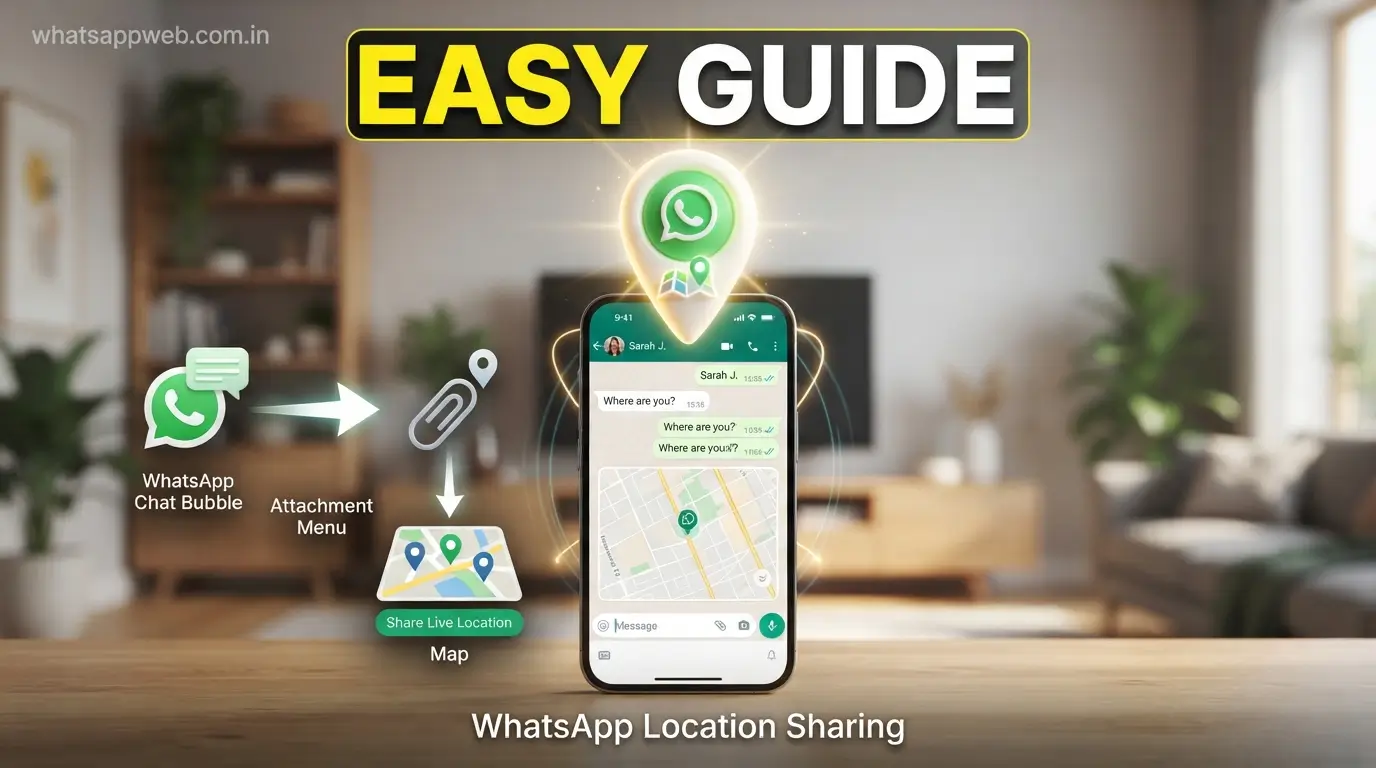
Learning how to send a location on WhatsApp is one of the easiest ways to help friends, family, or colleagues find you quickly without the hassle of explaining directions. Whether you’re meeting someone at a busy shopping mall, guiding a delivery driver to your doorstep, or letting loved ones know you’re traveling safely, WhatsApp’s built-in location-sharing feature makes communication faster and more accurate. By using your phone’s GPS and internet connection, you can instantly share your current location or allow trusted contacts to follow your live location in real time, making it a practical tool for both everyday use and emergency situations.
How to send a location on WhatsApp on both Android and iPhone with simple, step-by-step instructions. We’ll also explain the difference between WhatsApp live location and current location, show you how to share a different place, fix common WhatsApp location not working issues, and provide essential privacy tips to keep your information secure. Whether you’re a beginner using the feature for the first time or someone looking to get the most out of location sharing on WhatsApp, this guide covers everything you need to know in one place.
What Does WhatsApp Location Sharing Mean?
Before learning how to send a location on WhatsApp, it’s important to understand how the platform’s location-sharing feature works. WhatsApp allows users to share their geographical position directly within a chat, making it easy to help others find them without typing detailed directions. By using your smartphone’s GPS, internet connection, and location services, the app can accurately detect where you are and send either your current location or your live location. This feature is especially useful for meeting friends, coordinating with family, assisting delivery drivers, or sharing your whereabouts during travel, all while keeping the process simple, fast, and secure.
Current Location vs Live Location
When using how to send location on WhatsApp, you’ll notice two different sharing options: Current Location and Live Location. Although both features allow you to share your whereabouts, they serve different purposes. Current location sends a one-time snapshot of your exact position at the moment you share it. Once it’s sent, the location remains fixed and does not update, even if you move to another place. This option is ideal when you simply want someone to know where you are at a specific moment, such as when meeting at a restaurant, office, or home.
On the other hand, WhatsApp live location provides real-time tracking by continuously updating your position as you move. You can choose how long your location is shared, typically 15 minutes, 1 hour, or 8 hours, and stop sharing at any time. This feature is particularly helpful during road trips, walking home at night, or when someone needs to monitor your journey for safety. Understanding the difference between current location and live location helps you choose the right option based on your needs while using how to send location on WhatsApp effectively and securely.
Read Also: How to send a location on WhatsApp
How to Send Your Current Location on WhatsApp
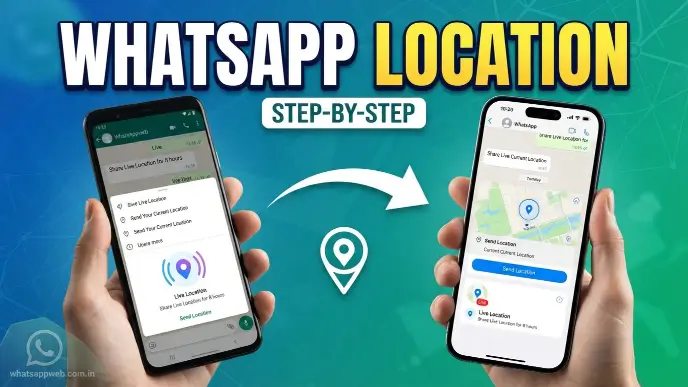
Once you understand how WhatsApp location sharing works, the next step is learning how to send a location on WhatsApp using the current location feature. This option lets you share a one-time snapshot of your exact position with an individual or a group chat. It’s ideal when you’re meeting someone, directing a visitor to your home, or helping a delivery driver find you. The process is simple on both Android and iPhone, but you’ll first need to ensure your device has location services enabled and that WhatsApp has permission to access your location.
On Android
If you’re using an Android device, sending your current location on WhatsApp only takes a few taps. Open WhatsApp and navigate to the chat where you want to share your location. Tap the paperclip (Attach) icon next to the message box and select Location. After a few seconds, WhatsApp will detect your position using your phone’s GPS location and display nearby places along with your exact location.
Next, tap Send Your Current Location to instantly share your location in the conversation. The recipient can simply tap the shared map to open it in Google Maps or another navigation app for turn-by-turn directions. Following these simple steps makes sending a location on WhatsApp quick, accurate, and convenient whenever you need to let someone know where you are.
On iPhone
The steps for iPhone users are very similar, although the menu layout differs slightly. Open WhatsApp and select the conversation where you want to send your location. Tap the + (Plus) icon beside the text field, choose Location, and wait while WhatsApp identifies your current location using your iPhone’s location services.
Once your location appears, tap Send Your Current Location. Your contact will immediately receive a map showing your exact position, which they can open in Apple Maps or another compatible navigation app. If you’re wondering how to send your location on WhatsApp on iOS, this method is the fastest and most reliable way to share your location with friends, family, or colleagues.
Before You Start
Before attempting to share your location, make sure your smartphone’s location services or GPS feature is turned on. Without GPS access, WhatsApp may not be able to determine your exact position, resulting in inaccurate or unavailable location information. It’s also important to have an active internet connection through Wi-Fi or mobile data, as WhatsApp requires connectivity to transmit your location successfully.
You should also verify that WhatsApp has permission to access your device’s location. On Android, go to Settings > Apps > WhatsApp > Permissions > Location, while iPhone users can check Settings > Privacy & Security > Location Services > WhatsApp. Selecting Allow While Using the App ensures WhatsApp can access your GPS location whenever you need it. Completing these simple checks before using how to send location on WhatsApp helps prevent common location-sharing issues and ensures the feature works smoothly every time.
How to Share Live Location on WhatsApp
In addition to sharing your current location, WhatsApp also lets you share your live location, which updates your position in real time as you move. This feature is particularly useful when you’re traveling, meeting someone in an unfamiliar place, or allowing trusted family members to monitor your journey for safety. Learning how to send location on WhatsApp using the Live Location feature ensures your contacts always have access to your latest location until you decide to stop sharing or the selected time expires.
Steps for Android
Sharing your WhatsApp live location on an Android device is simple and only takes a few moments. Open WhatsApp and select the chat where you want to share your location. Tap the paperclip (Attach) icon, choose Location, and then select Share Live Location. If prompted, grant WhatsApp permission to access your device’s location services so it can continuously update your position while you’re moving.
Next, choose how long you want to share your location—15 minutes, 1 hour, or 8 hours. You can also add an optional message before tapping Send. Once shared, your contact will see your location updating in real time on the map. Following these steps makes sending your location on WhatsApp even more useful when someone needs to track your progress during a trip or while you’re on your way to a destination.
Steps for iPhone
On an iPhone, the process is almost identical, although the navigation menu is slightly different. Open WhatsApp and enter the conversation where you’d like to share your location. Tap the + (Plus) icon next to the message field, select Location, and then choose Share Live Location. If this is your first time using the feature, ensure WhatsApp has permission to access your GPS location by allowing location access when prompted.
After selecting the sharing duration, tap Send to begin sharing your real-time location. Your recipient can watch your movements directly within the chat until the selected time ends or you manually stop sharing. Understanding this process is an important part of learning how to send a location on WhatsApp, especially if you frequently travel or need to keep family and friends informed about your whereabouts.
How to Stop Sharing Live Location
Although WhatsApp live location automatically stops after the selected duration, you don’t have to wait for the timer to expire. If you no longer want others to see your movements, simply open the chat where you’re sharing your location and tap Stop Sharing. Confirm your selection, and WhatsApp will immediately stop sending your real-time location updates.
Ending live location sharing as soon as it’s no longer needed is a good privacy habit. It helps ensure that only trusted contacts have temporary access to your whereabouts and reduces unnecessary location tracking. Whether you’re using the feature for personal safety or convenience, knowing how to stop sharing is just as important as learning how to send location on WhatsApp responsibly and securely.
Current Location vs Live Location Comparison
When learning how to send a location on WhatsApp, it’s important to understand the differences between the current location and WhatsApp live location. While both features help you share your whereabouts with friends, family, or colleagues, they are designed for different situations. Current location sends a one-time snapshot of where you are at that exact moment, making it ideal for sharing an address or meeting point. In contrast, live location continuously updates your position in real time, allowing trusted contacts to follow your movements until the sharing duration ends or you manually stop it. Choosing the right option depends on whether you simply want to show your location once or provide ongoing updates for convenience and safety.
Comparison Table
| Feature | Current Location | Live Location |
| Location Updates | Shares your location only once | Updates your location continuously in real time |
| Movement Tracking | Does not track movement after sending | Tracks your movement until sharing ends |
| Best Use Case | Meeting someone, sharing an address, or giving directions | Traveling, commuting, road trips, or personal safety |
| Duration | One-time share | 15 minutes, 1 hour, or 8 hours |
| Real-Time Updates | No | Yes |
| Can Be Stopped Manually | Not required | Yes, at any time |
| Battery Usage | Low | Slightly higher because GPS remains active |
| Internet Requirement | Requires an internet connection to send | Requires an active internet connection throughout the sharing |
| Privacy Level | Shares only your location at the moment of sending | Continuously shares your updated location until stopped |
| Recommended For | Everyday location sharing | Real-time tracking with trusted contacts during travel or emergencies |
How to Send a Different Location on WhatsApp
Sometimes you may need to share a location other than where you currently are. For example, you might want to send the address of a restaurant, hotel, office, tourist attraction, or a friend’s home before arriving there. Fortunately, learning how to send a location on WhatsApp isn’t limited to sharing your own position. WhatsApp also allows you to search for nearby places and share them directly, or you can send locations from popular navigation apps like Google Maps and Apple Maps. This flexibility makes it easier to recommend destinations, plan meetings, and provide accurate directions without being physically present at the location.
Search for a Place
WhatsApp includes a built-in search feature that allows you to share locations other than your own. Open the chat where you want to send the location, tap the Attach icon on Android or the + (Plus) icon on iPhone, and select Location. Instead of choosing your current location, use the search bar at the top of the screen to type the name or address of the place you want to share, such as a café, shopping center, school, or business.
After entering your search, WhatsApp will display matching results based on your query. Simply select the correct place, and it will be shared instantly in the conversation with a map preview. This method is ideal when you want to recommend a destination or help someone navigate to a specific location. Understanding this feature is another useful part of mastering how to send a location on WhatsApp, especially when your own location isn’t the destination you want to share.
Share a Google Maps or Apple Maps Location
If the location you’re looking for doesn’t appear in WhatsApp’s search results, you can easily share it using Google Maps on Android or Apple Maps on iPhone. Open your preferred maps application, search for the destination, and tap on the place to view its details. Then select the Share option and choose WhatsApp from the list of available apps.
Once WhatsApp opens, select the contact or group you want to send the location to and confirm the message. The recipient will receive a clickable map link that opens directly in their preferred navigation app, making it easy to get directions. Using Google Maps location sharing or Apple Maps location sharing is especially helpful when sharing newly added places, remote destinations, or locations that may not be listed in WhatsApp. This approach provides another reliable way to send a location on WhatsApp for accurate and convenient navigation.
Common Mistakes to Avoid
While learning how to send a location on WhatsApp is straightforward, many users unknowingly make mistakes that can lead to inaccurate location sharing, privacy concerns, or technical issues. Simple oversights like disabling location services, forgetting to stop WhatsApp live location, or using an outdated app can affect the overall experience. By understanding these common errors and taking a few preventive measures, you can ensure your location is shared accurately, securely, and only with the people you trust whenever you use WhatsApp.
Common Mistake
- Forgetting to enable GPS location before sharing may prevent WhatsApp from detecting your exact position accurately.
- Denying WhatsApp permission to access location services can stop both current and live location features from working properly.
- Sharing WhatsApp live location with unknown or untrusted contacts may expose your movements and compromise your personal privacy.
- Forgetting to stop live location sharing after reaching your destination can unnecessarily continue broadcasting your real-time whereabouts.
- Using an outdated version of WhatsApp may cause bugs, missing features, or problems while sharing your location.
- Relying on a weak internet connection can delay or interrupt real-time location updates during active location sharing.
- Selecting the wrong place from the location search results may send incorrect directions to the recipient.
- Ignoring low battery warnings can reduce GPS accuracy and interrupt continuous live location updates on your device.
- Assuming current location updates automatically can confuse recipients because it only shares your position once.
- Failing to verify the shared location before sending may result in inaccurate navigation and unnecessary confusion for recipients.
Why WhatsApp Location Is Not Working
Although sending a location on WhatsApp is usually a simple process, you may occasionally experience issues that prevent your location from being shared correctly. Problems such as disabled location services, poor internet connectivity, outdated app versions, or incorrect device settings can stop WhatsApp from detecting your location accurately. Fortunately, most of these issues can be resolved within a few minutes by checking your phone’s permissions, GPS settings, and software updates. Understanding these common causes will help you restore the location-sharing feature and continue using it without interruptions.
Location Permission Disabled
One of the most common reasons WhatsApp cannot share your location is that the app doesn’t have permission to access your device’s location services. If location permission is denied, WhatsApp won’t be able to detect your position, meaning both current location and WhatsApp live location features may be unavailable or display inaccurate information.
To fix this issue, open your phone’s Settings and review WhatsApp’s permissions. On Android, navigate to Settings > Apps > WhatsApp > Permissions > Location. On iPhone, go to Settings > Privacy & Security > Location Services > WhatsApp and choose Allow While Using the App. Granting the correct permission is often enough to restore full functionality and helps ensure that sending location on WhatsApp works smoothly.
GPS Turned Off
WhatsApp relies on your phone’s GPS location to determine your exact position. If GPS is turned off, the app may fail to locate you or display an incorrect location. This problem is especially common when users accidentally disable location services to save battery life or use battery-saving modes that restrict GPS functionality.
To resolve the issue, enable GPS from your phone’s Quick Settings panel or Location settings. Android users can also switch to High Accuracy mode for better precision, while iPhone users should make sure Location Services are enabled. Once GPS is active, reopen WhatsApp and try sharing your location again to complete how to send location on WhatsApp successfully.
Poor Internet Connection
Even if your GPS is working correctly, WhatsApp still requires an active internet connection to send and update your location sharing. Weak Wi-Fi signals or unstable mobile data can delay location detection, prevent maps from loading, or interrupt WhatsApp live location updates while you’re moving.
If your location isn’t sending, check whether your internet connection is stable. Try switching between Wi-Fi and mobile data or reconnecting to a stronger network. Restarting your router or enabling Airplane Mode for a few seconds before reconnecting can also help. A reliable internet connection ensures how to send location on WhatsApp works quickly and accurately.
Outdated WhatsApp Version
Using an older version of WhatsApp can sometimes cause location-sharing problems because outdated apps may contain bugs or compatibility issues with the latest Android or iOS updates. Missing software improvements can also affect the performance of location services and other important features.
To fix this, visit the Google Play Store or Apple App Store and check for available WhatsApp updates. Installing the latest version gives you access to new features, security improvements, and bug fixes that improve overall performance. Keeping your app updated is a simple but effective way to avoid issues while using how to send location on WhatsApp.
Phone Location Accuracy Settings
Your phone’s location accuracy settings play a significant role in determining how precisely WhatsApp can identify your position. If these settings are disabled or configured incorrectly, your shared location may appear inaccurate or take longer to load, especially in crowded cities or indoor environments.
Android users should enable Google Location Accuracy or High Accuracy mode for the best results, while iPhone users should keep Precise Location enabled for WhatsApp in the Location Services settings. These options allow your device to combine GPS, Wi-Fi, Bluetooth, and mobile networks for improved positioning. Optimizing these settings helps ensure how to send location on WhatsApp remains accurate, reliable, and responsive whenever you need to share your location.
Tips for Sharing Your Location Safely
Understanding how to send a location on WhatsApp is only part of using the feature responsibly. Protecting your privacy should always be a priority whenever you share your current location or WhatsApp live location. While location sharing is incredibly useful for meeting people, traveling, or ensuring personal safety, it should only be used with trusted contacts. Following a few simple security practices can help you protect your personal information, reduce privacy risks, and enjoy the convenience of WhatsApp’s location-sharing feature with greater confidence.
Tips for Sharing Your Location
- Share your current location or live location only with trusted friends, family members, or colleagues you know personally.
- Stop WhatsApp live location immediately after reaching your destination to prevent unnecessary real-time tracking by other users.
- Double-check the selected location before sending to ensure you’re sharing the correct place with your intended recipient.
- Keep WhatsApp updated to benefit from the latest security patches, bug fixes, and improved location sharing performance.
- Enable two-factor authentication on your WhatsApp account to add an extra layer of protection against unauthorized access.
- Avoid sharing your live location in public groups unless it’s necessary and everyone in the group is trusted.
- Review WhatsApp’s location services permission regularly and revoke access if you no longer use the feature frequently.
- Use a secure Wi-Fi connection or trusted mobile data network to reduce the risk of interrupted or inaccurate location sharing.
- Disable live location as soon as your journey ends to minimize privacy exposure and conserve your device’s battery life.
- Learn how to send your location on WhatsApp responsibly by balancing convenience with privacy and sharing your location only when truly necessary.
Frequently Asked Questions
Can I share my location in a WhatsApp group?
Yes, you can share both your current location and WhatsApp live location in individual and group chats.
Why can’t I send my location on WhatsApp?
This usually happens when location services are disabled, GPS is off, or WhatsApp doesn’t have location permission.
Can I share a Google Maps location on WhatsApp?
Yes. Open Google Maps, select a location, tap Share, and choose WhatsApp.
Is WhatsApp live location safe?
Yes, WhatsApp live location is protected by end-to-end encryption. Share it only with trusted contacts.
Can I stop sharing my live location anytime?
Yes. Open the chat, tap Stop Sharing, and your live location will stop updating immediately.
Conclusion
Learning how to send a location on WhatsApp is a simple yet valuable skill that makes it easier to meet friends, guide family members, coordinate with colleagues, and stay connected during travel. Whether you use your current location for a one-time update or choose WhatsApp live location for real-time tracking, the feature offers a fast, accurate, and convenient way to share your whereabouts. With just a few taps, you can help others find you without the need for lengthy directions or repeated messages.
By following the step-by-step instructions, troubleshooting tips, and privacy recommendations in this guide, you can use WhatsApp’s location-sharing feature with confidence. Always keep your location services enabled, share your location only with trusted contacts, and stop live location sharing when it’s no longer needed. Now that you know how to send a location on WhatsApp, you can make your conversations more efficient while keeping your personal information safe and secure.
