

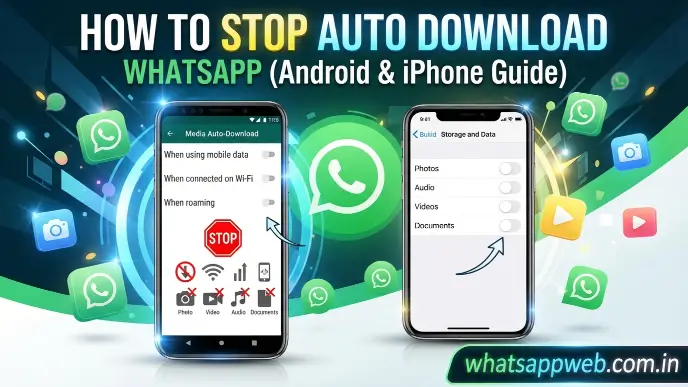
If you are searching for How to Stop Auto Download in WhatsApp, you’re likely trying to save storage space, reduce mobile data usage, or prevent unwanted photos and videos from cluttering your phone. WhatsApp automatically downloads media files such as images, videos, audio, and documents based on your network settings, making it convenient to access shared content instantly. However, this feature can quickly fill your device with unnecessary files, especially if you’re active in multiple group chats or receive media frequently. Learning how to manage WhatsApp media auto-download and adjust your WhatsApp storage settings can help you take full control of what gets saved on your device.
Disabling automatic downloads not only keeps your phone organized but also improves privacy and helps conserve your internet data. Whether you are using an Android phone, an iPhone, or WhatsApp Desktop, the app provides flexible options to control when media files are downloaded. How to stop auto-download in WhatsApp, customize download preferences for different network types, prevent media from appearing in your gallery, and discover practical tips to save mobile data, prevent WhatsApp photos from saving automatically, and manage WhatsApp storage more efficiently.
Why WhatsApp Automatically Downloads Media
Before learning how to stop auto-download in WhatsApp, it’s important to understand why this feature exists and how it works. WhatsApp is designed to provide a smooth messaging experience by automatically downloading media files shared in chats. While this can be convenient, it may also lead to excessive WhatsApp storage usage, higher mobile data usage, and an overflowing gallery filled with unwanted files. Understanding the purpose of WhatsApp media download settings helps you decide which files should be downloaded automatically and which should remain available for manual download.
What Is Media Auto Download?
Media Auto Download is a built-in WhatsApp feature that automatically saves incoming photos, videos, audio messages, voice notes, and documents based on your internet connection. The app allows you to configure separate download preferences for mobile data, Wi-Fi, and roaming, giving you flexibility over how media is received. By default, many devices are set to automatically download certain file types, making conversations feel faster and more interactive.
Although this feature improves convenience, it can also consume valuable storage space over time. If you’re active in family groups, office chats, or community groups, your phone may quickly fill with hundreds of unnecessary images and videos. Adjusting your automatic media download settings allows you to keep only the files you actually need while reducing clutter and improving your device’s overall performance.
Why WhatsApp Enables It by Default
WhatsApp enables automatic media downloads by default because most users expect shared photos, videos, and documents to be instantly available when they open a conversation. This default setting eliminates the need to manually download every file, creating a faster and more seamless messaging experience. For users who frequently exchange important media, automatic downloads can make communication more efficient.
However, not everyone benefits from these default settings. Users with limited device storage or restricted internet plans may find that automatic downloads consume unnecessary resources. If you’re trying to learn how to stop auto-download in WhatsApp, changing these settings can help you control mobile data usage, reduce WhatsApp storage consumption, and prevent unwanted files from being saved automatically.
Benefits and Drawbacks
Automatic media downloads offer several advantages, especially for users who regularly receive important files. Photos, videos, and documents become available immediately without requiring any extra action, making conversations smoother and reducing waiting time. This is particularly useful for work-related chats or family conversations where shared media needs to be accessed quickly. For users connected to unlimited Wi-Fi, WhatsApp media downloads can provide a convenient and uninterrupted messaging experience.
On the other hand, the drawbacks often outweigh the benefits for many users. Automatic downloads can quickly fill your phone with duplicate images, memes, promotional videos, and other unwanted content that occupies valuable storage space. They can also increase mobile data usage, affect your phone’s performance, and create privacy concerns by displaying personal media in your gallery. Learning how to stop auto-download in WhatsApp allows you to regain control over your storage, internet usage, and the overall organization of your device while ensuring you only download the files that matter.
Read Also: how to restore whatsapp backup from google drive
How to Stop Auto Download in WhatsApp on Android
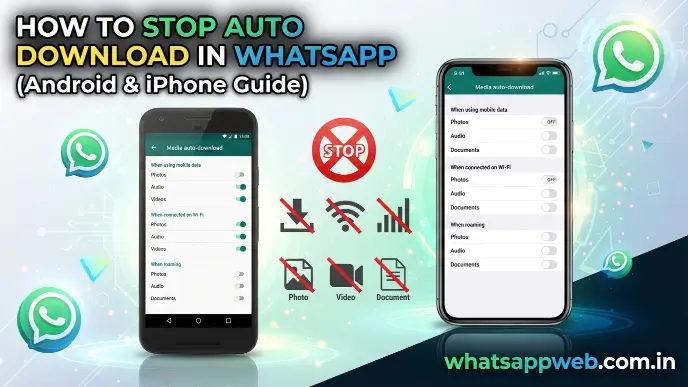
If you use an Android device, learning how to stop auto-download in WhatsApp is simple and only takes a few minutes. WhatsApp provides dedicated settings that let you control when photos, videos, audio files, and documents are downloaded. By adjusting these options, you can reduce mobile data usage, save WhatsApp storage, and prevent unnecessary WhatsApp media downloads from filling your phone. The following steps will help you configure your Android settings for better storage management and a more organized messaging experience.
Open Storage and Data Settings
The first step is to access WhatsApp’s Storage and Data menu, where all automatic media download preferences are located. Open WhatsApp on your Android phone, tap the three-dot menu in the upper-right corner, and select Settings. Next, tap Storage and Data to view the Media Auto-Download section, which contains separate settings for mobile data, Wi-Fi, and roaming.
This section acts as the control center for managing every type of downloaded media. Instead of allowing every image, video, or document to be saved automatically, you can customize exactly how WhatsApp handles incoming files. Making changes here is the most effective way to how to stop auto-download in WhatsApp while keeping full control over your WhatsApp storage and internet usage.
Disable Downloads on Mobile Data
Mobile data is often limited, making it important to prevent unnecessary downloads when you’re away from Wi-Fi. Under the Media Auto-Download section, tap When Using Mobile Data. You’ll see options for Photos, Audio, Videos, and Documents. Uncheck every media type and tap OK to save your changes.
Once these settings are disabled, WhatsApp will no longer automatically download media while you’re using your cellular network. Instead, you’ll see a download icon on each file, allowing you to choose what you actually want to save. This simple adjustment helps reduce mobile data usage while preventing unwanted WhatsApp media downloads from consuming your monthly data allowance.
Disable Downloads on Wi-Fi
Many users assume disabling downloads on mobile data is enough, but WhatsApp can still automatically download media whenever your phone connects to Wi-Fi. To prevent this, tap When Connected on Wi-Fi and remove the checkmarks from Photos, Audio, Videos, and Documents before saving your changes.
Although Wi-Fi doesn’t consume your mobile data plan, automatic downloads can still occupy valuable storage space with unnecessary files. Disabling this option ensures that every photo, video, or document is downloaded only when you choose. This provides better control over WhatsApp storage and helps keep your device free from unwanted media.
Disable Downloads While Roaming
If you travel internationally or frequently connect to roaming networks, disabling automatic downloads becomes even more important. Under When Roaming, deselect every available media option, including Photos, Audio, Videos, and Documents. Saving these settings prevents WhatsApp from downloading files while your device is connected to a roaming network.
Roaming charges can be expensive, especially when large videos or multiple images are downloaded automatically in group chats. Turning off downloads while roaming protects you from unexpected data charges and ensures that only essential files are downloaded manually. It’s another effective way to how to stop auto-downloading in WhatsApp while minimizing mobile data usage and avoiding unnecessary costs.
Turn Off Media Visibility (Gallery)
Even after disabling automatic downloads, downloaded photos and videos may still appear in your phone’s Gallery app. To prevent this, go to Settings > Chats and switch off Media Visibility. This setting hides newly downloaded WhatsApp media from your gallery while keeping the files accessible within the WhatsApp application.
Turning off Media Visibility helps keep your photo gallery organized and protects your privacy by preventing personal or work-related images from appearing alongside your regular photos. Combined with your automatic media download settings, this feature offers complete control over WhatsApp media downloads, making it easier to manage storage, reduce clutter, and maintain a cleaner Android device.
How to Stop Auto Download in WhatsApp on iPhone
If you are an iPhone user, learning how to stop auto-download in WhatsApp can help you manage your device storage, protect your privacy, and reduce unnecessary file downloads. WhatsApp allows iPhone users to customize WhatsApp media download preferences directly from the app settings. By adjusting these options, you can control whether photos, videos, audio files, and documents are downloaded automatically. These changes are especially useful for users who receive a large number of files through personal chats, business conversations, or group messages and want better control over WhatsApp storage and mobile data usage.
Open Storage and Data
To begin changing your download preferences, open WhatsApp on your iPhone and tap the Settings icon at the bottom-right corner. From the settings menu, select Storage and Data, where you will find the automatic media download options. This section allows you to choose how WhatsApp handles different types of media when you are connected to mobile data or Wi-Fi.
The Storage and Data menu gives you complete control over incoming files without affecting your ability to receive messages. Instead of allowing WhatsApp to save every image, video, or document automatically, you can adjust the settings according to your needs. This is an important step when following how to stop auto-download in WhatsApp because it helps reduce unwanted WhatsApp media downloads and keeps your device storage organized.
Set Photos to Never
Photos are among the most commonly shared files on WhatsApp and can quickly take up a large amount of space on your iPhone. To stop automatic photo downloads, open the Photos option under Media Auto-Download and select Never. After this change, WhatsApp will no longer save incoming images automatically, and you will need to tap each photo manually before viewing or saving it.
Disabling automatic photo downloads is especially helpful for users who are part of active group chats where hundreds of images are shared daily. This setting reduces WhatsApp storage usage, prevents your Photos app from becoming cluttered, and gives you more control over which images are stored on your device. It is one of the simplest ways to improve privacy and manage WhatsApp media download behavior.
Set Videos to Never
Videos usually consume much more storage space than photos, making them one of the biggest contributors to unnecessary WhatsApp storage usage. To disable automatic video downloads, go to the Videos option in the Media Auto-Download section and choose Never. From now on, videos will only download when you manually tap them inside a chat.
Turning off automatic video downloads can significantly improve storage management, especially if you frequently receive long videos, forwarded clips, or large files in group conversations. This adjustment helps reduce mobile data usage and prevents your iPhone storage from filling up with videos you may never watch. It is an essential setting for anyone who wants to stop auto-downloading in WhatsApp effectively.
Disable Audio and Documents
WhatsApp can also automatically download audio files and documents, including PDFs, presentations, and other attachments. To disable these downloads, open the Audio and Documents options under Media Auto-Download and select Never for both. This prevents unnecessary files from being saved automatically and gives you more control over what enters your device storage.
Disabling audio and document downloads is useful for users who receive many work files, voice recordings, or forwarded attachments. Instead of storing every file automatically, you can choose only the important ones you need. This helps maintain better WhatsApp storage management while reducing unwanted automatic media download activity on your iPhone.
Prevent Photos from Saving to Camera Roll
Even after changing your media download settings, WhatsApp may still save downloaded images and videos to your iPhone Photos app if the saving option is enabled. To prevent this, open WhatsApp Settings, tap Chats, and turn off Save to Photos. This stops WhatsApp images from appearing automatically in your Camera Roll.
Disabling the Save to Photos option keeps your personal photo library cleaner and improves privacy by separating WhatsApp media from your regular pictures. Your downloaded files will remain available inside WhatsApp conversations, but they will not automatically mix with your iPhone photos. Combining this setting with your automatic media download preferences gives you complete control over how to stop auto-download in WhatsApp and maintain better WhatsApp storage management.
How to Stop Auto Download in WhatsApp Desktop and Web
If you use WhatsApp on a computer, knowing How to Stop Auto Download in WhatsApp can help you prevent unnecessary files from being saved on your desktop or laptop. WhatsApp Desktop and WhatsApp Web handle media downloads differently from mobile apps, but you can still control which files are downloaded manually. Adjusting these settings helps reduce WhatsApp storage usage on your computer, improves file organization, and prevents unwanted WhatsApp media downloads from filling your device with images, videos, and documents you do not need.
Windows
On Windows, WhatsApp Desktop allows you to manage downloaded media by controlling where and when files are saved. Open the WhatsApp Desktop application, go to Settings, and review the available options related to downloads and media handling. While WhatsApp Desktop may not provide the same detailed automatic media download controls available on Android and iPhone, you can avoid unnecessary downloads by choosing not to open files unless you need them.
To maintain better control over WhatsApp storage on your Windows computer, regularly review the downloaded files folder and remove media you no longer need. You can also avoid downloading large videos, documents, and repeated images from group chats unless they are important. These habits help reduce clutter and make it easier to manage files received through WhatsApp Desktop.
Mac
Mac users can follow similar steps to limit unwanted WhatsApp downloads. Open the WhatsApp application on your Mac and check the available settings for media preferences. Although WhatsApp for Mac does not offer the same level of download customization as the mobile version, you can still control your storage by manually choosing which media files to open and save.
Managing downloaded files regularly is important because large videos, documents, and image collections can quickly consume Mac storage space. By being blog selective about the files you download, you can reduce unnecessary WhatsApp media download activity and keep your computer organized. This approach works well for users who receive frequent work files or media-heavy messages.
WhatsApp Web
WhatsApp Web works directly through your browser, meaning files are usually downloaded only when you manually click the download option. To avoid unwanted downloads, simply avoid selecting the download button for media files unless you actually need them. This gives you more control over mobile data usage when using WhatsApp Web through a limited internet connection.
For users who frequently access WhatsApp Web on shared or work computers, manually managing downloads also improves privacy and security. Avoid saving sensitive photos, documents, or personal files unless necessary. Combining careful downloading habits with your mobile settings is an effective way to stop auto-download in WhatsApp and maintain better control over your WhatsApp storage across all devices.
Benefits of Turning Off Auto Download
Turning off automatic downloads is a simple way to improve your device experience and maintain better control over your files. When you learn how to stop auto-download in WhatsApp, you can reduce unnecessary WhatsApp media downloads, manage WhatsApp storage more effectively, and avoid unwanted files taking up space. This setting also helps reduce mobile data usage, improve privacy, and keep your phone organized. Whether you use Android, iPhone, or Desktop, disabling auto-download gives you more control over what content is saved.
Benefits of disabling WhatsApp auto-download:
- Save storage: Prevents unnecessary photos, videos, and documents from filling your device.
- Save internet data: Reduces background downloads and lowers mobile data consumption.
- Better privacy: Stops unwanted media from appearing automatically on your device.
- Cleaner gallery: Keeps personal photos separate from WhatsApp images and videos.
- Faster phone performance: Frees storage space, helping your device run smoothly.
- Less clutter: Avoids saving unwanted forwarded files and duplicate media.
- More control: Lets you choose which files to download manually.
- Improved organization: Makes managing important WhatsApp files easier.
- Reduced battery usage: Limits unnecessary background activity caused by downloads.
- Safer file management: Prevents unknown files from being saved automatically.
What Happens After You Disable Auto Download?
After you learn how to stop auto-download in WhatsApp and disable automatic downloads, WhatsApp will no longer save incoming media files automatically to your device. Instead, you will have complete control over which photos, videos, audio files, and documents you want to download. This change does not affect your messages or chats, and you can still access all shared media whenever needed. It simply changes the way WhatsApp media downloads work and helps manage WhatsApp storage more efficiently.
What happens after disabling auto-download?
- Manual downloads: Download files only when you tap them.
- Blurred previews: Media appears with a preview until downloaded.
- No message loss: Chats and messages remain completely unaffected.
- Storage control: Avoid unwanted files occupying device space.
- Data savings: Reduces unnecessary mobile data usage.
- Privacy improvement: Prevents automatic saving of sensitive media.
- Better organization: Keeps your device cleaner and easier to manage.
Common Problems and Fixes
Even after changing your settings, some users may still experience issues with WhatsApp media downloads. If you are trying to learn how to stop auto-download in WhatsApp but files continue downloading or appearing in your gallery, the problem is usually caused by incorrect settings, device permissions, or app updates. Understanding these common problems and their solutions can help you manage WhatsApp media downloads, reduce WhatsApp storage usage, and maintain better control over your files.
Media Still Downloads Automatically
If WhatsApp continues downloading photos, videos, or documents automatically, first check your Media Auto-Download settings again. Sometimes users disable downloads for mobile data but forget to change Wi-Fi or roaming settings. Open WhatsApp Settings > Storage and Data and make sure all media categories are set according to your preferences.
Another possible reason is that the file was already downloaded before you changed the settings. Disabling automatic media download only affects future files and does not remove existing media. Restarting WhatsApp after changing settings can also help apply the changes correctly and ensure your WhatsApp storage settings are working properly.
Photos Still Appear in the Gallery
If WhatsApp images continue appearing in your phone’s gallery after disabling downloads, the issue may be related to media visibility settings. On Android, check that Media Visibility is turned off under WhatsApp chat settings. On iPhone, make sure Save to Photos is disabled to prevent WhatsApp images from appearing in your Camera Roll.
Keep in mind that previously downloaded photos will remain visible unless you manually delete them from your gallery. Changing these settings only prevents new files from appearing automatically. Managing your existing files regularly can help maintain a cleaner gallery and better WhatsApp storage organization.
Downloads Resume After Updates
Sometimes WhatsApp updates can reset certain preferences or introduce new settings that affect media downloads. After installing an app update, it is a good idea to review your Storage and Data settings again to confirm that your download preferences remain unchanged.
To avoid unexpected downloads after updates, regularly check your automatic media download options and review app permissions. Keeping WhatsApp updated is important for security and performance, but checking your settings afterward ensures you continue to stop auto-download in WhatsApp according to your preferred configuration.
Settings Keep Changing
If your WhatsApp settings appear to change automatically, the issue may be caused by device backups, app restoration, or accidentally modified settings. Make sure you are using the latest version of WhatsApp and avoid restoring old app data that may contain previous download preferences.
For a permanent solution, review your WhatsApp permissions, update the app regularly, and check your settings after major phone updates. Maintaining these habits helps prevent unwanted WhatsApp media downloads, reduces mobile data usage, and ensures your device continues working according to your preferences.
Best Tips to Manage WhatsApp Storage
Managing WhatsApp storage regularly helps keep your phone faster, more organized, and free from unnecessary files. Even after learning how to stop auto-download in WhatsApp, existing photos, videos, and documents can continue to use valuable space. By following smart storage management practices, you can control WhatsApp storage, reduce unwanted WhatsApp media downloads, and improve overall device performance. Simple habits like reviewing large files, limiting group downloads, and clearing unnecessary media can prevent storage problems and help you keep important conversations without clutter.
Best tips to manage WhatsApp storage:
- Review large files monthly: Remove unnecessary videos and documents regularly.
- Disable group media downloads: Prevent unwanted files from busy group chats.
- Use Wi-Fi only: Download important media through safer connections.
- Archive inactive chats: Reduce clutter from old conversations.
- Clear forwarded media: Delete repeated images, videos, and files.
- Use WhatsApp storage manager: Identify and remove large items easily.
- Delete duplicate files: Free space by removing repeated media.
- Limit video downloads: Videos consume the most storage space.
- Backup important chats: Protect valuable data before deleting files.
- Check storage regularly: Monitor WhatsApp space usage consistently.
Frequently Asked Questions
Can I stop only videos from downloading automatically in WhatsApp?
Yes. Go to Settings > Storage and Data and disable video downloads while keeping other media options active.
Will disabling auto-download delete existing WhatsApp media?
No. It only stops future downloads. Existing photos, videos, and documents will remain unless you delete them manually.
Can I still view WhatsApp photos after turning off auto-download?
Yes. You can manually tap and download any photo or file whenever you need it.
Why are WhatsApp images still showing in my gallery?
Check your Media Visibility or Save to Photos settings. Disable them to prevent new WhatsApp media from appearing.
Does disabling auto-download save mobile data?
Yes. It reduces mobile data usage by stopping unwanted WhatsApp media download in the background.
Conclusion
Learning how to stop auto-download in WhatsApp helps you take better control of your device storage, internet usage, and privacy. By changing your WhatsApp settings, you can prevent unnecessary photos, videos, audio files, and documents from downloading automatically. This simple adjustment reduces WhatsApp media downloads, saves mobile data usage, and keeps your phone free from unwanted files.
Whether you use Android, iPhone, or WhatsApp Desktop, managing automatic downloads allows you to choose what content is saved on your device. With proper WhatsApp storage management and regular cleanup, you can enjoy a faster, cleaner, and more organized messaging experience without losing access to important media.
