


Losing important conversations can be stressful, especially when they include personal memories, work discussions, or shared media files. Understanding how to back up WhatsApp chat is essential for protecting your WhatsApp messages and ensuring that your chat history is never lost due to device failure, accidental deletion, or app reinstallation. With the increasing reliance on messaging apps, having a reliable WhatsApp backup strategy is no longer optional; it is a basic digital safety practice.
WhatsApp provides multiple backup methods depending on your device, including Google Drive backup for Android and iCloud backup for iPhone. These systems securely store your data and allow you to restore WhatsApp chats whenever you switch phones or reinstall the app. Modern backups may also include end-to-end encrypted backup options, adding an extra layer of privacy and protection against unauthorized access.
How WhatsApp Backup Works
Understanding how to back up WhatsApp chat is important because WhatsApp uses different systems depending on your device. These systems store your mobile WhatsApp backup either in cloud storage or on your phone, so your chat history can be restored whenever needed. Each method works differently but serves the same purpose: protecting your messages from loss.WhatsApp backup systems are designed to automatically save your data based on your settings. Whether you are using Android or iPhone, your WhatsApp backup ensures that important conversations, media, and settings remain safe even if you change or lose your device.
Google Drive Backup (Android)
On Android devices, WhatsApp uses Google Drive backup to store your chat data securely in the cloud. This system is linked to your Google account, which means your WhatsApp backup can be accessed anytime you log in again with the same account.
It also supports automatic updates, so your chat history is regularly saved based on your selected settings. This makes it easier to keep your data updated without manual effort.
How data is stored
- Stored in Google Drive cloud storage: Your chats are uploaded online, not saved inside the phone
- Linked to Google account: Backup can only be accessed with the same Gmail login
- Includes chats and media: Messages, images, and videos are saved depending on settings
- Optional encryption support: Adds a security layer to protect your WhatsApp backup
Backup frequency options
- Daily backup: Saves data every day for maximum protection
- Weekly backup: Balanced option for regular users
- Monthly backup: Saves storage and reduces data usage
- Manual backup: User controls when WhatsApp backup is created
iCloud Backup (iPhone)
On iPhone, WhatsApp uses iCloud backup to securely store your chat data within Apple’s ecosystem. This ensures your WhatsApp backup stays connected to your Apple ID and can be restored easily on any iPhone.
The system works automatically when enabled, syncing your chat history in the background. This helps users avoid losing data when switching devices or reinstalling WhatsApp.
Apple storage system integration
- Connected to Apple ID: Backup is tied to your iCloud account
- Uses iCloud storage: Saves WhatsApp data in Apple’s cloud system
- Syncs across Apple devices: Ensures consistency of chat history
- Secure cloud environment: Protects your WhatsApp backup data
Sync behavior
- Runs in the background: Updates without user action
- Requires Wi-Fi connection: Prevents mobile data usage
- Updates automatically: Keeps WhatsApp backup current
- Depends on iCloud storage: Backup stops if storage is full
Local Backup (Android Only)
Android devices also create a local backup that is stored directly on the phone. This method is useful when internet access is not available, as your WhatsApp backup remains saved inside device storage.
However, local backups are not cloud-based, so they are mainly useful for short-term recovery. They still play an important role in protecting your chat history if used correctly.
Stored on device storage
- Saved in phone memory: Stored inside the internal storage folder
- No internet required: Works without Wi-Fi or data
- Updated daily: Automatically refreshed every 24 hours
- Encrypted database files: Keep WhatsApp backup protected locally
Manual backup files
- Accessible via file manager: Users can view backup files directly
- Can be copied externally: Transfer to SD card or PC
- Useful for manual recovery: Helps restore chat history
- Less secure than cloud backup: Risk of loss if the phone is damaged
How to Back Up WhatsApp Chat on Android
Understanding how to back up WhatsApp chat on Android is crucial for anyone who wants to keep their WhatsApp backup safe and avoid losing important conversations. WhatsApp contains personal chats, business discussions, and media files, so losing your chat history due to phone damage, theft, or accidental deletion can be a serious problem. To solve this, Android provides built-in backup options that automatically store your WhatsApp backup either on Google Drive or in local storage. Once configured properly, these systems ensure your chat history is continuously protected and can be restored whenever you reinstall WhatsApp or switch to a new device.
Step-by-Step Google Drive Backup Setup
Google Drive backup is the most reliable and widely used method for backing up WhatsApp chat on Android. It works by uploading your WhatsApp backup to cloud storage linked with your Google account, which makes it easy to restore your chat history on any Android device.
This method is especially useful for long-term safety because even if your phone is lost, stolen, or factory reset, your WhatsApp backup remains safe in the cloud. It also supports automatic syncing, so your data stays updated without manual effort.
Manual Backup on Android
Manual backup is an important option when learning how to back up WhatsApp chat, especially when you need an instant WhatsApp backup at a specific moment. Instead of waiting for scheduled backups, this feature allows you to save your chat history immediately with a single action.
This is very useful before changing phones, updating the system, or reinstalling WhatsApp. It ensures that your most recent messages and media are safely included in your latest WhatsApp backup, reducing the risk of losing any important data.
Image Placement
Image placement plays an important role in understanding how to back up WhatsApp chat because it visually guides users through the backup process inside the app. A clear screenshot of the WhatsApp backup screen helps users quickly identify where the WhatsApp backup settings are located.
This is especially helpful for beginners who may not be familiar with navigation inside WhatsApp settings. Visual steps make it easier to understand how chat history backup works, reducing confusion and ensuring the process is done correctly without missing any important options.
Read also: how to back up WhatsApp chat
How to Back Up WhatsApp Chat on iPhone
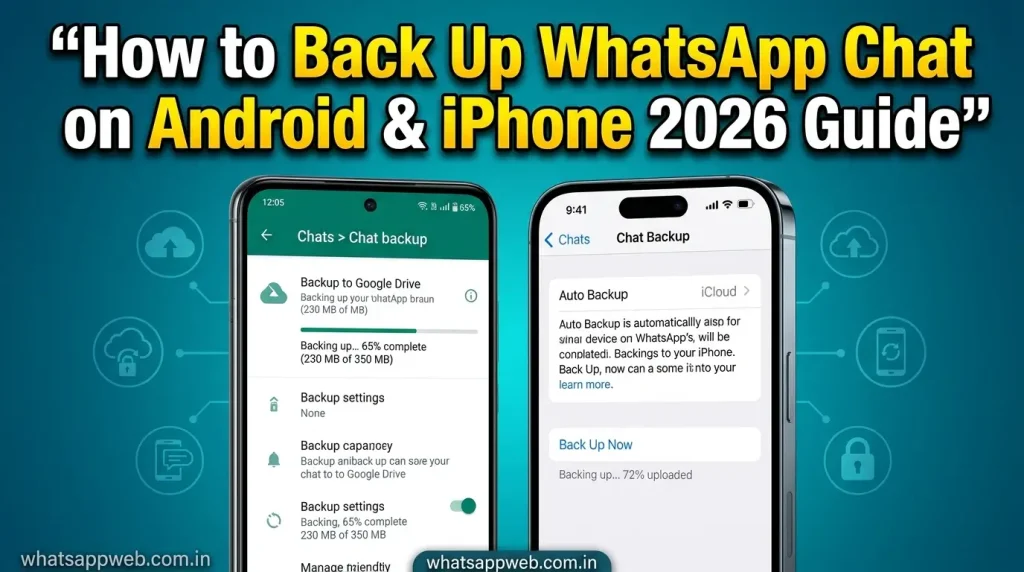
Understanding how to back up WhatsApp chat on iPhone is essential for protecting your WhatsApp backup because modern communication heavily depends on saved conversations, media files, and shared documents. If your device is lost, damaged, or reset, your entire chat history could disappear permanently without a proper backup system in place.iPhone uses Apple’s iCloud system to securely store your WhatsApp backup in the cloud. Once configured correctly, your chat history is automatically synced and updated in the background, allowing you to restore everything easily when switching to a new device or reinstalling WhatsApp.
Enable iCloud Backup for WhatsApp.
Setting up iCloud is the first and most important step in backing up WhatsApp chat on iPhone because it connects WhatsApp with Apple’s cloud infrastructure. When enabled, your WhatsApp backup is no longer stored only on your device but is safely uploaded to iCloud, ensuring long-term protection of your chat history.
This process also ensures that your data is continuously updated whenever your phone meets the required conditions, like Wi-Fi connection and sufficient battery. As a result, your WhatsApp backup remains current without requiring repeated manual effort from the user.
iCloud activation steps
To activate iCloud backup, you first open iPhone Settings and tap on your Apple ID profile at the top. This section controls all cloud-related services, including storage and syncing for apps like WhatsApp.
Next, you go into iCloud settings and enable iCloud Drive, which is necessary for storing your WhatsApp backup. After that, you scroll through the app list and turn on WhatsApp access so it is allowed to store your chat history in iCloud. Finally, you confirm the setup by opening WhatsApp, going into Chats, then Chat Backup, and verifying that iCloud backup is active.
Storage requirements
iCloud storage plays a critical role in backing up WhatsApp chat because every message, image, video, and document contributes to the total backup size. If your iCloud storage is full, your WhatsApp backup may stop working or fail to update completely.
A stable Wi-Fi connection is also required because large amounts of chat history data need to be uploaded securely to the cloud. In addition, your Apple ID must be active and properly signed in, and your iPhone should be running an updated iOS version to avoid compatibility issues during backup.
Manual Backup on iPhone
Manual backup gives you direct control over how to back up WhatsApp chat whenever you need an immediate WhatsApp backup. Instead of waiting for automatic schedules, you can instantly save your latest chat history before making any important changes to your device.
This method is especially useful in situations like switching phones, resetting iPhone settings, or reinstalling WhatsApp. It ensures that all recent conversations and media are safely stored in iCloud at the exact moment you choose.
Back Up Now” option inside WhatsApp
The “Back Up Now” option is located inside WhatsApp settings under Chats and Chat Backup. When you tap it, WhatsApp immediately begins preparing your WhatsApp backup and uploads your complete chat history to iCloud.
During this process, WhatsApp collects all messages, media files, and settings, compresses them, and securely transfers them to Apple’s cloud servers. The process must not be interrupted, as stopping it may result in an incomplete WhatsApp backup.
Image Placement
Image placement is important for understanding how to back up WhatsApp chat because it visually explains where each option is located inside iPhone settings. A clear screenshot of the iCloud toggle screen helps users quickly identify how to enable WhatsApp backup correctly.
This visual support is especially helpful for beginners who may not be familiar with Apple’s interface or navigation system. It reduces confusion and ensures users can correctly manage their chat history backup without missing any important steps or settings.
Common WhatsApp Backup Problems & Fixes
Understanding how to back up WhatsApp chat is not always smooth because users often face different technical issues while creating or restoring their WhatsApp backup. These problems usually occur due to storage limitations, internet issues, incorrect account settings, or app glitches. When your chat history is not backed up properly, it can lead to data loss or incomplete restoration. Knowing the common problems and their fixes helps ensure your WhatsApp data remains safe and fully recoverable anytime.
Common WhatsApp Backup
- Google Drive full stops WhatsApp backup; free space or upgrade storage for smooth chat history backup.
- Weak internet interrupts backup; always use a stable Wi-Fi for the complete WhatsApp backup upload process.
- Wrong Google account blocks restore; ensure the same email is used for chat history recovery.
- iCloud storage full causes failure; clear space before running WhatsApp backup on iPhone.
- An outdated WhatsApp version creates errors; update the app to fix WhatsApp backup issues quickly.
- Battery saver mode interrupts backup; disable it during the chat history syncing process.
- Phone not connected to Wi-Fi slows backup; ensure a strong connection for WhatsApp backup.
- A corrupted cache may stop backup; clear the WhatsApp cache to restore the chat history function.
- Date and time mismatch affects syncing; set automatic time for proper WhatsApp backup.
- Backup not enabled prevents data save; activate settings to protect chat history properly.
How to Restore WhatsApp Backup
Understanding how to back up WhatsApp chat is incomplete without learning how to restore it, because your WhatsApp backup is only useful when you can recover your chat history on a new or reset device. Restoration ensures all messages, media, and conversations return exactly as they were before.WhatsApp allows easy restoration through Google Drive on Android and iCloud on iPhone. During setup, the app automatically detects your saved WhatsApp backup and helps you recover your chat history in a few simple steps.
Restore on Android
Restoring WhatsApp on Android depends on using the correct Google account linked to your WhatsApp backup. Without the same account, WhatsApp cannot detect your saved chat history in Google Drive.
After reinstalling WhatsApp and verifying your number, the app automatically searches for available backups. If found, it shows a restore option to recover your chat history easily.
Same Google account requirement
- Use the same Gmail account
- Backup stored in Google Drive
- Required for WhatsApp backup access
- A different account means no chat history found
Restore prompt after reinstall
- Appears after verification
- Detects existing backup
- Starts recovery option
- Downloads chat history from Drive
Restore on iPhone
On iPhone, restoration works through iCloud, which is directly linked to backing up WhatsApp chat and your stored WhatsApp backup. Without the correct Apple ID, WhatsApp cannot access your saved chat history.
After reinstalling the app, WhatsApp checks iCloud automatically. If a backup is available, it offers a restore option to recover your chat history during setup.
iCloud login requirement
- Same Apple ID needed
- iCloud Drive must be on
- Required for WhatsApp backup
- Wrong ID blocks chat history access
Verification process
- Phone number verification
- Security code sent
- Confirms user identity
- Enables chat history restore process
Common WhatsApp Backup Problems & Fixes
Understanding how to back up WhatsApp chat is important, but many users face issues where their WhatsApp backup does not work properly or fails during the process. These problems can prevent your chat history from being saved, updated, or restored correctly, which may lead to missing messages or incomplete backups. Most of these issues happen due to storage limits, internet problems, or incorrect account settings. Once you understand the cause, you can easily fix your WhatsApp backup and ensure your chat history stays safe and fully updated at all times.
Backup Stuck or Not Completing
Sometimes the backup process gets stuck or does not complete while trying to save your WhatsApp backup. This usually happens when large media files, low device storage, or background restrictions interrupt the process, causing your chat history to stop syncing properly.
In many cases, the backup fails because WhatsApp cannot finish uploading all data to Google Drive or iCloud. When this happens, your WhatsApp backup remains incomplete and does not include the latest messages or media.
Google Drive Storage Issues
Google Drive storage problems are a common reason why backup WhatsApp chat fails on Android devices. When your cloud storage is full, WhatsApp cannot upload new chat history, which stops the backup process completely.
This issue usually happens when users already have many files stored in their Google account. Without enough space, your WhatsApp backup cannot be saved, and older data may not update properly until storage is cleared or upgraded.
iCloud Not Syncing
iCloud not syncing properly can prevent your WhatsApp backup from updating on your iPhone. This usually happens when iCloud Drive is turned off, the Apple ID is incorrect, or storage space is full, stopping your chat history from being uploaded.
When syncing fails, WhatsApp cannot store new messages or media in the cloud. As a result, your WhatsApp backup stays outdated and does not reflect your latest conversations.
Network-Related Problems
A weak or unstable internet connection can interrupt the backup WhatsApp chat, causing your WhatsApp backup to fail during upload. Since backup files contain large amounts of data, a stable connection is required for the smooth transfer of chat history.
If the connection drops or slows down, the backup process may stop halfway and restart later. This results in incomplete or delayed WhatsApp backup, making it harder to keep your data fully updated.
Tips to Keep WhatsApp Backup Safe
Understanding how to back up WhatsApp chat properly is not enough; you also need to maintain your WhatsApp backup to ensure the long-term safety of your data. A secure backup helps protect your chat history from accidental loss, hacking, device failure, or storage issues. By following the right precautions, you can keep your WhatsApp data consistently updated and easily recoverable on any device whenever needed without facing data loss problems.
Tips to Keep WhatsApp
- Enable automatic backups daily to protect the WhatsApp backup and keep the chat history always safe and current.
- Use strong Google or Apple account passwords to secure your WhatsApp backup from unauthorized access or hacking attempts.
- Regularly check storage space to ensure smooth WhatsApp backup and prevent failed or incomplete chat history uploads.
- Always use a stable Wi-Fi connection for faster and more reliable WhatsApp backup without interruptions or data loss issues.
- Keep WhatsApp updated to the latest version for better WhatsApp backup performance and improved chat history security features.
- Avoid switching accounts frequently to prevent losing access to existing WhatsApp backup and stored chat history data.
- Enable two-factor authentication for extra protection of your WhatsApp backup and personal chat history security layer.
- Exclude unnecessary media files to reduce backup size and improve WhatsApp backup speed and efficiency during syncing.
- Periodically test the restore process to ensure your WhatsApp backup and chat history work correctly when needed.
- Monitor backup status regularly to confirm your WhatsApp backup is successfully updating without any hidden errors or failures.
Frequently Asked Questions
How often should I back up WhatsApp chats?
You should back up your WhatsApp backup daily or weekly, depending on how frequently you use WhatsApp. Regular backups ensure your chat history is always updated and protected from unexpected data loss.
Does WhatsApp backup include photos and videos?
Yes, your WhatsApp backup can include photos and videos if you enable the media backup option. This helps preserve your full chat history, including shared images, audio, and video files.
Can I restore WhatsApp backup on a new phone?
Yes, you can restore your WhatsApp backup on a new phone by using the same Google account on Android or Apple ID on iPhone. This allows full recovery of your chat history during setup.
Why is my WhatsApp backup failing?
Backup may fail due to low storage, weak internet, or incorrect account settings affecting your WhatsApp backup. Fixing these issues usually restores proper chat history syncing.
Is WhatsApp backup secure?
Yes, your WhatsApp backup is secure, especially with end-to-end encrypted backup enabled. This ensures your chat history remains private and protected from unauthorized access.
Conclusion
Understanding how to back up WhatsApp chat is essential for protecting your WhatsApp backup and ensuring that your important conversations are never lost due to device issues, accidental deletion, or app reinstallation. Whether you are using Android or iPhone, proper backup settings help you secure your chat history in Google Drive or iCloud for easy recovery whenever needed.
By regularly updating and managing your WhatsApp backup, you can avoid data loss and ensure smooth restoration on any new device. A well-maintained backup system keeps your chat history safe, updated, and always ready to restore whenever you switch or reset your phone.
