

In today’s digital world, protecting personal conversations has become more important than ever. Whether you’re discussing confidential work information, sharing financial details, or simply chatting with family and friends, keeping your messages private is essential. Fortunately, WhatsApp offers a built-in Chat Lock feature that adds an extra layer of protection to your most sensitive conversations. If you’re searching for how to lock chat in WhatsApp, you’ve come to the right place. This guide will walk you through everything you need to know, from enabling Chat Lock on Android and iPhone to managing locked chats and troubleshooting common issues. Along the way, you’ll also learn how WhatsApp Chat Lock, WhatsApp privacy, private conversations, and chat security work together to keep your messages safe from unauthorized access.
Unlike simply archiving a conversation, Chat Lock protects individual chats with your device’s fingerprint, Face ID, or passcode, making it much harder for anyone else to access your personal messages. Once enabled, your locked conversations are moved to a secure folder, and message previews in notifications are hidden to enhance privacy. Whether you’re a beginner using WhatsApp for the first time or a long-time user looking to improve your WhatsApp security, this comprehensive guide explains how to lock chat in WhatsApp with clear, step-by-step instructions. You’ll also discover useful tips about Secret Code, locked chats, biometric authentication, and other privacy features that help you keep your conversations secure while using WhatsApp with confidence.
What Is WhatsApp Chat Lock?
If you’re learning how to lock chat in WhatsApp, it’s important first to understand what WhatsApp Chat Lock actually is and why it matters. WhatsApp Chat Lock is a built-in privacy feature that allows users to secure individual chats using their device’s fingerprint, Face ID, or passcode. Instead of locking the entire app, this feature protects only the selected conversations, making it ideal for anyone who wants to keep personal or sensitive messages out of unauthorized hands. By moving protected chats into a separate Locked Chats folder, WhatsApp provides an extra layer of WhatsApp privacy while ensuring your most important conversations remain secure.
How Chat Lock Works
WhatsApp Chat Lock works by encrypting access to specific conversations through your phone’s existing security system. After you enable Chat Lock for a chat, the conversation is automatically moved to a dedicated Locked Chats folder that can only be opened after successful biometric authentication or by entering your device passcode. In addition, message previews from locked chats are hidden in notifications, helping protect your private conversations even when your phone is unlocked.
The feature integrates seamlessly with your smartphone’s built-in security options, so there is no need to install third-party applications or create separate passwords. Depending on your device, you can unlock protected chats using a fingerprint, Face ID, Touch ID, or screen passcode. This combination of end-to-end encryption and biometric authentication significantly improves chat security, allowing you to access your messages quickly while preventing others from viewing your confidential conversations.
Benefits of Locking WhatsApp Chats
Using WhatsApp Chat Lock offers numerous advantages for anyone who values digital privacy. One of the biggest benefits is that it protects sensitive conversations from family members, friends, coworkers, or anyone who may temporarily use your phone. Once a chat is locked, it is stored separately from your regular chat list, making hidden chats much less noticeable while reducing the risk of accidental exposure. This added protection is especially useful for business discussions, financial information, personal documents, and confidential messages.
Another major advantage is the convenience of using your phone’s existing security features instead of remembering additional passwords. With biometric authentication such as fingerprint recognition or Face ID, you can securely access your protected chats within seconds. If you’re looking for how to lock chat in WhatsApp to improve your daily messaging experience, Chat Lock provides an easy and reliable solution that strengthens WhatsApp privacy, enhances chat security, and helps keep your private conversations protected without affecting the rest of your WhatsApp account.
Read Also: How to lock chat in WhatsApp
Requirements Before You Lock a Chat
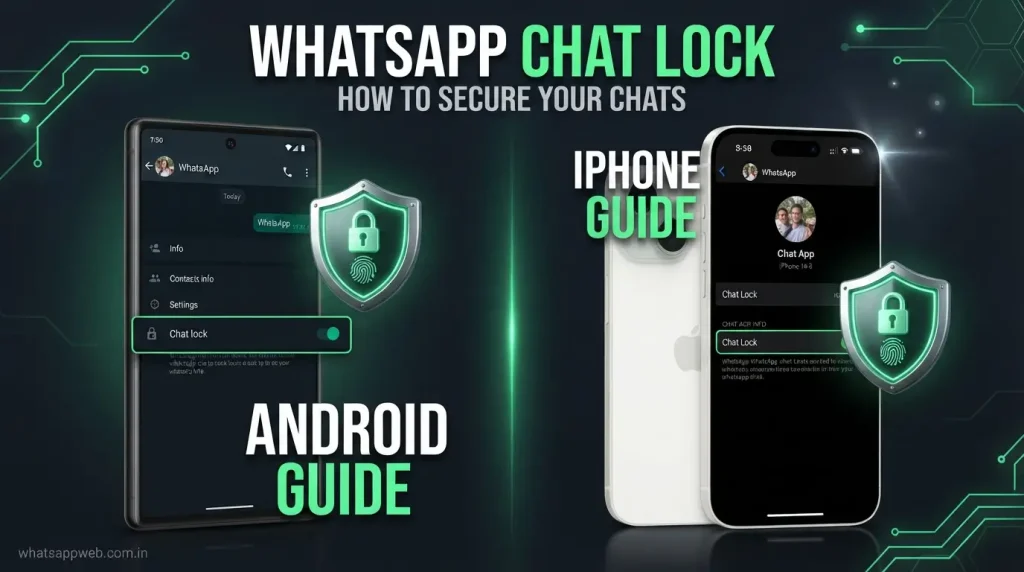
Before you follow the steps for how to lock chat in WhatsApp, it’s important to make sure your device is properly prepared. WhatsApp Chat Lock relies on your phone’s built-in security features, so a few basic requirements must be met before the option becomes available. Checking these settings in advance ensures that the feature works smoothly and provides the highest level of WhatsApp privacy, chat security, and protection for your private conversations.
Update WhatsApp
The first step is to ensure that you’re using the latest version of WhatsApp. Chat Lock is a relatively new feature, and older versions of the app may not include it or may have limited functionality. Keeping WhatsApp updated also provides access to the latest security improvements, bug fixes, and privacy enhancements that help protect your account and improve overall performance.
To update WhatsApp, visit the Google Play Store on Android or the App Store on iPhone, search for WhatsApp, and tap Update if a newer version is available. Once the update is complete, restart the app and check whether the Chat Lock option appears in your chat settings. Using the latest version not only helps when learning how to lock chat in WhatsApp, but also ensures you benefit from the newest hidden chats features and improved WhatsApp privacy controls.
Enable Fingerprint, Face ID, or Device Passcode
WhatsApp Chat Lock depends on your device’s authentication system to secure your conversations. Before you can lock any chat, your smartphone must have at least one security method enabled, such as a fingerprint scanner, Face ID, Touch ID, or a screen passcode. Without one of these security options, WhatsApp cannot verify your identity, and the Chat Lock feature will remain unavailable.
If you haven’t already enabled biometric authentication, open your phone’s Settings app and configure your preferred security method. Android users can typically set up Fingerprint Unlock, PIN, Password, or Pattern Lock, while iPhone users can enable Face ID, Touch ID, or a device passcode. Once these settings are active, WhatsApp can use them to protect your private conversations, strengthen chat security, and keep your hidden chats accessible only to you. Completing this step is essential before proceeding with how to lock chat in WhatsApp.
How to Lock Chat in WhatsApp on Android
If you’re using an Android smartphone, learning how to lock chat in WhatsApp is a simple process that only takes a few minutes. WhatsApp’s Chat Lock feature allows you to protect selected conversations using your device’s fingerprint, PIN, password, or pattern lock. Once activated, your chats are moved to a secure folder, helping improve WhatsApp privacy, strengthen chat security, and safeguard your private conversations from unauthorized access.
Step 1 — Open WhatsApp
Begin by unlocking your Android device and launching the WhatsApp application from your home screen or app drawer. Before proceeding, ensure you’re signed in to your account and connected to the internet so all features function properly.
If you’ve recently updated WhatsApp, you’ll have access to the latest privacy tools, including Chat Lock. Starting with the most recent version helps ensure a smoother experience and allows you to use advanced hidden chats features without compatibility issues while following how to lock chat in WhatsApp.
Step 2 — Open the Chat
From the Chats tab, locate the conversation you want to protect and tap to open it. You can lock individual chats with friends, family members, coworkers, or most group conversations, depending on your WhatsApp version.
Choose the chat carefully because Chat Lock applies only to the selected conversation, not your entire WhatsApp account. This selective protection gives you greater control over your private conversations while maintaining excellent WhatsApp privacy for the messages that matter most.
Step 3 — Enable Chat Lock
Once the conversation is open, tap the contact’s name or the group name displayed at the top of the screen. This opens the Chat Info page, where you’ll find various settings related to that specific conversation.
Scroll through the available options until you see Chat Lock. Tap it and enable the Lock This Chat option by toggling the switch. This activates WhatsApp’s built-in protection and prepares the conversation to be secured using your phone’s authentication system, further improving chat security and helping create hidden chats that remain protected from unauthorized access.
Step 4 — Authenticate Using Fingerprint or PIN
After enabling Chat Lock, WhatsApp will ask you to verify your identity using your device’s preferred security method. Depending on your Android phone, you may be prompted to scan your fingerprint, enter your PIN, input your password, or draw your screen pattern.
This authentication step confirms that you are the device owner before the chat is locked. Once verified, the selected conversation is immediately protected, ensuring only authorized users can access it. This extra verification is one of the key reasons why how to lock chat in WhatsApp is considered an effective way to improve WhatsApp privacy and chat security.
What Happens After Locking?
As soon as Chat Lock is enabled, the selected conversation is removed from your main chat list and placed inside a dedicated Locked Chats folder. To view or reply to messages in this folder, you’ll need to authenticate with your fingerprint, PIN, password, or other supported security method each time you access it.
In addition to restricting access, WhatsApp also hides message previews from notifications for locked conversations, reducing the risk of someone reading sensitive information from your lock screen. This combination of secure storage, biometric authentication, and hidden notifications helps protect your private conversations, enhances hidden chats, and makes how to lock chat in WhatsApp one of the most valuable privacy features available for Android users.
Chat Lock vs Archived Chats
Many users confuse Chat Lock with WhatsApp’s Archive feature, but they serve completely different purposes. If you’re learning how to lock chat in WhatsApp, it’s important to understand this distinction. Chat Lock is designed to protect your private conversations by requiring biometric authentication or a device passcode before anyone can access selected chats. In contrast, Archived Chats simply remove conversations from your main chat list to reduce clutter—they do not provide any additional chat security or WhatsApp privacy. The comparison below highlights the key differences between these two features.
Comparison Table
| Feature | Chat Lock | Archived Chats |
| Primary Purpose | Protects individual chats with biometric authentication or device passcode | Organizes chats by hiding them from the main chat list |
| Security Level | High | Low |
| Requires Fingerprint, Face ID, or Passcode | Yes | No |
| Protects Private Conversations | Yes | No |
| Improves WhatsApp Privacy | Yes | No |
| Creates Hidden Chats | Yes, chats are moved to the Locked Chats folder | Partially, chats are archived but remain easily accessible |
| Hides Message Preview in Notifications | Yes | No |
| Accessible Without Authentication | No | Yes |
| Best For | Securing confidential or sensitive conversations | Keeping the chat list organized and clutter-free |
| Risk of Unauthorized Access | Very Low | High if someone has access to your unlocked phone |
Common Problems and Fixes
While learning how to lock chat in WhatsApp, you may occasionally encounter issues that prevent the feature from working as expected. These problems can occur due to outdated app versions, disabled biometric authentication, unsupported devices, or incorrect settings. Fortunately, most Chat Lock issues are easy to fix with a few simple troubleshooting steps. By identifying the cause and applying the appropriate solution, you can restore WhatsApp privacy, improve chat security, and continue protecting your private conversations without losing access to your important messages.
Common Problems
- Update WhatsApp to the latest version if the Chat Lock feature is missing from your app.
- Enable fingerprint, Face ID, or device passcode before attempting to activate Chat Lock on any conversation.
- Restart your smartphone after updating WhatsApp to refresh settings and enable newly added privacy features.
- Check device compatibility because older Android and iPhone models may not fully support Chat Lock functionality.
- Verify biometric authentication is working correctly in your phone’s security settings before enabling Chat Lock.
- Reconnect to the internet if WhatsApp fails to sync recent updates or privacy feature changes.
- Clear WhatsApp cache on Android if Chat Lock settings fail to load or respond properly.
- Disable battery optimization for WhatsApp if background restrictions interfere with authentication or feature availability.
- Back up your chats before reinstalling WhatsApp to avoid losing important conversations during troubleshooting.
- Contact WhatsApp Support if Chat Lock still doesn’t work after trying all recommended troubleshooting steps.
How to Lock Chat in WhatsApp on iPhone
If you’re an iPhone user, learning how to lock chat in WhatsApp is quick and straightforward. WhatsApp’s Chat Lock feature allows you to secure individual conversations using Face ID, Touch ID, or your device passcode, ensuring that only you can access sensitive messages. Once enabled, the selected chat is moved to a protected folder, helping improve WhatsApp privacy, strengthen chat security, and keep your private conversations safe from unauthorized access.
Enable Chat Lock
To begin, open WhatsApp on your iPhone and navigate to the conversation you want to protect. Tap the contact’s name or the group name at the top of the chat to open the Chat Info screen, where you’ll find various settings related to that conversation.
Scroll down until you see the Chat Lock option, then tap it and enable Lock This Chat with Face ID or the available authentication method on your device. Once activated, WhatsApp prepares the conversation for secure access, helping create hidden chats while enhancing your overall WhatsApp privacy.
Authenticate with Face ID
After enabling Chat Lock, WhatsApp will immediately ask you to verify your identity using Face ID, Touch ID, or your device passcode. Simply complete the authentication process by looking at your iPhone or using your registered fingerprint if your device supports Touch ID.
Once your identity is confirmed, the selected conversation is automatically moved to the Locked Chats folder. From that point onward, every time you try to open the protected chat, you’ll need to authenticate again using Face ID or your chosen security method. This extra layer of verification significantly improves chat security, protects your private conversations, and ensures that how to lock chat in WhatsApp provides reliable privacy for your most important messages.
How to Unlock a Locked Chat
If you no longer need to protect a specific conversation, you can easily remove Chat Lock at any time. Understanding how to lock chat in WhatsApp also means knowing how to reverse the process when necessary. Unlocking a chat restores it to your regular chat list while allowing you to manage your messages as usual. The process only takes a few moments and ensures you maintain full control over your WhatsApp privacy, chat security, and private conversations.
Remove Chat Lock
To remove Chat Lock, first open WhatsApp and access the Locked Chats folder by swiping down on the Chats screen. Authenticate using your fingerprint, Face ID, Touch ID, or device passcode, then open the conversation you want to unlock. Tap the contact or group name at the top of the screen to access the Chat Info page.
On the Chat Info screen, locate the Chat Lock option and turn off Lock This Chat. WhatsApp will ask you to verify your identity one final time before removing the protection. After successful authentication, the chat is no longer secured with biometric verification, giving you normal access while still preserving your private conversations and maintaining your preferred level of WhatsApp privacy.
Move Chat Back to Normal List
Once Chat Lock has been disabled, WhatsApp automatically removes the conversation from the Locked Chats folder. You don’t need to manually transfer the chat or change any additional settings, as the app restores it to its original location in your main Chats list.
After the conversation returns to the normal chat list, it behaves like any other WhatsApp chat. New messages appear with standard notifications, and the conversation can be opened without biometric authentication. Knowing how to both enable and disable Chat Lock gives you greater flexibility when managing hidden chats, improving chat security, and mastering how to lock chat in WhatsApp according to your changing privacy needs.
Tips for Better WhatsApp Privacy
Protecting your WhatsApp account involves more than simply learning how to lock chat in WhatsApp. While Chat Lock is an excellent feature for securing individual conversations, combining it with other privacy settings provides stronger protection against unauthorized access. Regularly reviewing your account security, enabling advanced authentication methods, and managing your privacy preferences can significantly improve WhatsApp privacy, strengthen chat security, and keep your private conversations safe from potential threats. Following these best practices helps you enjoy a more secure messaging experience while maintaining complete control over your personal information.
Tips for Better WhatsApp
- Enable Two-Step Verification to add an extra security layer and prevent unauthorized access to your WhatsApp account.
- Use a strong device passcode instead of simple PINs to improve overall chat security and account protection.
- Keep WhatsApp updated regularly to receive the latest security patches, bug fixes, and privacy feature improvements.
- Review your privacy settings to control who can view your profile photo, status, and last seen information.
- Lock sensitive chats using Chat Lock to better protect your private conversations from unauthorized access.
- Encrypt your cloud backups to ensure your WhatsApp data remains protected even when stored online.
- Check linked devices regularly and remove any unfamiliar sessions from WhatsApp’s Linked Devices section immediately.
- Avoid opening suspicious links received from unknown contacts to reduce phishing and malware security risks.
- Enable disappearing messages for confidential chats to automatically remove conversations after a selected period.
- Never share verification codes with anyone because scammers often use them to hijack WhatsApp accounts.
Frequently Asked Questions
Can I lock multiple chats in WhatsApp?
Yes. WhatsApp allows you to lock multiple chats individually. Simply enable Chat Lock for each conversation you want to protect, giving you better WhatsApp privacy for your most important messages.
Can someone access my locked chats?
No. Locked chats can only be opened using your fingerprint, Face ID, or device passcode. This extra verification helps protect your private conversations from unauthorized access.
Why is the Chat Lock option missing?
The Chat Lock option may be unavailable if you’re using an outdated version of WhatsApp or haven’t enabled your device’s fingerprint, Face ID, or passcode. Updating the app and your device usually fixes the issue.
Does Chat Lock work on WhatsApp Web?
No. Chat Lock is currently available only on the WhatsApp mobile app for Android and iPhone. You’ll need your mobile device to access and manage locked chats.
Is locking chat in WhatsApp a safe feature?
Yes. Chat Lock is an official WhatsApp feature designed to improve chat security and WhatsApp privacy. It securely protects your selected chats without affecting the rest of your conversations.
Conclusion
Learning how to lock chat in WhatsApp is a simple yet effective way to protect your most important conversations. Whether you use an Android device or an iPhone, the Chat Lock feature allows you to secure individual chats with your fingerprint, Face ID, or device passcode. This added layer of protection enhances WhatsApp privacy, improves chat security, and ensures that your private conversations remain accessible only to you.
By following the step-by-step instructions in this guide, you can easily lock, unlock, and manage your chats with confidence. Keeping WhatsApp updated, enabling biometric authentication, and using additional privacy features like Secret Code will further strengthen your account’s security. With these best practices, how to lock chat in WhatsApp becomes an essential solution for anyone who wants a safer and more private messaging experience.
