


Welcome to WhatsApp Web. In today’s digital world, many people rely on more than one smartphone for everyday communication. Some use a separate device for work, while others keep a backup phone for travel or personal use. If you’ve ever wished you could access the same WhatsApp account on multiple phones without constantly logging in and out, you’re in luck. Thanks to WhatsApp’s official multi-device technology, it’s now possible to securely connect your account to another smartphone while keeping your conversations synchronized across devices. Understanding how to link WhatsApp to another phone can help you stay connected wherever you are, improve productivity, and make switching between devices effortless.
Whether you’re an Android or iPhone user, the process is much simpler than it used to be. Instead of transferring your account or risking the loss of messages, WhatsApp now offers WhatsApp Companion Mode through its Linked Devices feature, allowing you to use the same WhatsApp account on two phones at the same time. This official solution maintains end-to-end encryption, ensuring your messages, calls, photos, and documents remain private and secure while syncing seamlessly between devices. In this comprehensive guide, you’ll learn how to link WhatsApp to another phone step by step, discover the requirements before you begin, explore the features available on linked devices, troubleshoot common issues, and follow best practices to keep your account secure.
Can You Use the Same WhatsApp Account on Two Phones?
Yes, you can use the same WhatsApp account on two phones thanks to WhatsApp’s official multi-device technology. This feature allows users to stay connected across multiple devices without logging out of their primary phone or relying on third-party applications. If you’re learning how to link WhatsApp to another phone, understanding how this feature works is the first step. With WhatsApp linked devices and WhatsApp Companion Mode, you can securely access your conversations, calls, and media from more than one smartphone while maintaining end-to-end encryption.
What Is WhatsApp Companion Mode?
WhatsApp Companion Mode is an official feature that enables you to connect a second smartphone to your existing WhatsApp account without transferring your account or registering your phone number again. Instead of replacing your primary device, the second phone becomes a linked device that synchronizes your chats and allows you to continue conversations seamlessly. This feature is especially useful for people who carry separate phones for work and personal use or simply want the convenience of accessing WhatsApp from multiple devices.
When following the steps for how to link WhatsApp to another phone, you’ll use a QR code to establish a secure connection between your primary and secondary devices. Once linked, both phones can send and receive messages independently while keeping your data protected through WhatsApp’s end-to-end encryption. Since everything syncs automatically, you can switch between devices without interrupting your conversations.
How Linked Devices Work
The WhatsApp linked devices feature uses WhatsApp’s multi-device technology to connect additional devices to your account. After linking your second phone by scanning a QR code, WhatsApp securely synchronizes your chats, contacts, and media across both devices. Unlike older versions of the app, your linked phone can continue working independently for most tasks, even if your primary phone isn’t actively connected to the internet.
As you explore how to link WhatsApp to another phone, you’ll notice that every linked device maintains the same level of security as your primary phone. New messages, photos, videos, and documents are automatically synchronized, ensuring you always have access to your latest conversations. This seamless syncing makes it easy to switch between devices throughout the day without missing important updates.
Device Limits and Requirements
WhatsApp currently allows you to connect one primary smartphone and up to four additional linked devices under the same account. This flexibility makes it easy to use WhatsApp on two phones or even access your account on multiple supported devices, such as tablets and computers. To use this feature successfully, both devices should have the latest version of WhatsApp installed and a stable internet connection during the initial setup.
Before you begin how to link WhatsApp to another phone, make sure your primary phone is already registered with WhatsApp and available during the linking process. Once the devices are connected, your same WhatsApp account remains synchronized across all linked devices, allowing you to send messages, make calls, and access your chat history securely. You can also remove any linked device at any time through the Linked Devices menu if you no longer need access on that device.
Can You Use the Same WhatsApp Account on Two Phones?
Yes, you can use the same WhatsApp account on two phones by using WhatsApp Companion Mode, which is part of the WhatsApp linked devices feature. This official multi-device functionality allows you to access your chats, calls, photos, and other data from both devices without logging out of your primary phone. If you’re wondering how to link WhatsApp to another phone, the process is simple, secure, and only requires scanning a QR code to connect your secondary device. Unlike the older one-device limitation, WhatsApp now lets you use WhatsApp on two phones while keeping your same WhatsApp account synchronized across both devices. All conversations remain protected with end-to-end encryption, and you can switch between phones whenever needed without losing messages or interrupting your communication.
What Is WhatsApp Companion Mode?
WhatsApp Companion Mode is an official feature that allows users to connect a second smartphone to their existing WhatsApp account without transferring chats or registering their phone number again. It uses WhatsApp-linked devices technology to keep conversations, media, and calls securely synchronized across multiple devices.
If you’re learning how to link WhatsApp to another phone, Companion Mode provides the safest and easiest method. After linking the second phone with a QR code, you can use the same WhatsApp account on both devices while enjoying end-to-end encryption and a seamless messaging experience.
How Linked Devices Work
The WhatsApp linked devices feature securely connects your secondary phone to your primary WhatsApp account through WhatsApp’s multi-device system. During setup, you simply scan a QR code, allowing both devices to synchronize messages, contacts, media files, and other account data automatically.
Once the linking process is complete, both phones can send and receive messages independently without repeatedly signing in. This makes how to link WhatsApp to another phone a convenient solution for users who frequently switch between devices while wanting uninterrupted access to their conversations.
Device Limits and Requirements
WhatsApp currently supports one primary smartphone and up to four additional linked devices under the same account. To use this feature successfully, both phones should have the latest WhatsApp version installed and be compatible devices running supported Android or iOS versions.
Before starting on how to link WhatsApp to another phone, ensure both devices have a stable internet connection and enough battery power to complete the initial synchronization. Once connected, you can manage or remove linked devices anytime through the Linked Devices settings to keep your account secure.
Read Also: how to recover whatsapp chat
Requirements Before Linking WhatsApp to Another Phone
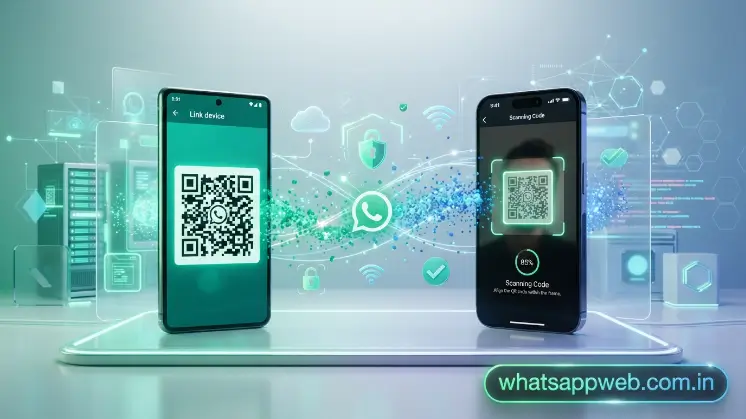
Before starting on how to link WhatsApp to another phone, ensure both devices meet WhatsApp’s basic requirements. Proper preparation helps avoid setup errors, speeds up synchronization, and ensures a secure linking experience using the latest WhatsApp version, compatible devices, and the official QR code linking method.
- Update WhatsApp: Install the latest WhatsApp version on both phones to access Companion Mode and prevent compatibility issues.
- Internet Connection: Connect both devices to a stable Wi-Fi or mobile data network for uninterrupted chat synchronization.
- Primary Phone Requirements: Keep your primary phone logged into WhatsApp, unlocked, and sufficiently charged throughout the setup process.
- Android and iPhone Compatibility: Ensure both phones are compatible devices running supported Android or iOS versions with official WhatsApp installed.
- QR Code: Scan the QR code using your primary phone to securely connect your secondary device instantly.
How to Link WhatsApp to Another Phone (Step-by-Step)
If you’re wondering how to link WhatsApp to another phone, the process is simple and only takes a few minutes. WhatsApp’s official multi-device feature allows you to securely link your WhatsApp account to a second smartphone without transferring your data or logging out of your primary device. By following the steps below, you can connect another phone, sync chats, and enjoy seamless access to your conversations across both devices.
Link Another Android Phone
To begin, download and install WhatsApp on your second Android phone from the Google Play Store. Open the app and remain on the welcome screen instead of entering your phone number. Tap the three-dot menu in the upper-right corner and select Link as Companion Device to display the WhatsApp QR code.
Next, open WhatsApp on your primary Android phone and go to Menu > Linked Devices > Link a Device. Verify your identity if prompted, then scan the QR code displayed on your second phone. This will securely connect WhatsApp to your Android device and begin the synchronization process.
Link an iPhone
Install the latest version of WhatsApp on your second iPhone and open the application. Do not register your phone number. Instead, access the option to Link as Companion Device, which will generate a unique WhatsApp QR code for linking.
On your primary phone, open WhatsApp and navigate to Settings > Linked Devices > Link a Device. Authenticate using Face ID, Touch ID, or your device passcode, then scan the QR code on the second iPhone. This securely creates a companion device linked to your existing WhatsApp account.
Scan the QR Code
The QR code is the key to securely linking your second phone with your existing WhatsApp account. In this blog, you’ll learn why it’s important to make sure both devices are connected to the internet and to keep the QR code visible until the scanning process is complete.
Using your primary phone, scan the WhatsApp QR code displayed on the secondary device. Once the code is recognized, WhatsApp will authenticate both devices and securely link your WhatsApp account without requiring another phone number verification.
Wait for Chat Synchronization
After the QR code is successfully scanned, WhatsApp automatically starts downloading your conversations, contacts, media files, and account information to the linked phone. The synchronization time depends on your internet speed and the size of your chat history.
Avoid closing the application or disconnecting your internet connection while WhatsApp continues to sync chats. Once synchronization is complete, your companion device will display the latest messages and remain updated with future conversations automatically.
What Happens After Sync?
Once synchronization finishes, both phones can independently send and receive messages, make voice and video calls, and access photos, videos, and documents using the same WhatsApp account. You can switch between devices whenever needed without losing conversations or logging in again.
With how to link WhatsApp to another phone completed successfully, your linked device will remain securely connected through WhatsApp’s multi-device technology. As long as your account stays active, both phones will continue synchronizing new messages and media while maintaining end-to-end encryption.
How to Remove a Linked Phone
If you no longer need access to WhatsApp on a secondary device, you can easily remove it through the Linked Devices settings. Whether you’re replacing your phone, selling an old device, or improving account security, removing a linked phone only takes a few moments. After learning how to link WhatsApp to another phone, it’s equally important to know how to manage and remove WhatsApp linked devices to keep your WhatsApp account secure.
From Android
On your Android phone, open WhatsApp and tap the three-dot menu in the top-right corner. Select Linked Devices to view all smartphones, computers, and other devices currently connected to your account. This section lets you monitor every active companion device linked to your WhatsApp account.
Tap the Android device you want to remove and select Log Out or Remove Device. Once confirmed, that device will immediately lose access to your chats, calls, and media. If you decide to use it again, you’ll need to link your WhatsApp account by scanning the WhatsApp QR code once more.
From iPhone
On your iPhone, open WhatsApp and tap Settings in the bottom-right corner of the screen. Next, select Linked Devices to see every connected device associated with your account. This menu allows you to review and manage all active WhatsApp-linked devices from one place.
Choose the linked iPhone or other device you want to remove, then tap Log Out to disconnect it from your account. After removal, the device will no longer sync chats or receive new messages until you complete how to link WhatsApp to another phone again using the official linking process.
What Features Work on Linked Phones?
After completing how to link WhatsApp to another phone, you can use most WhatsApp features on your companion device just as you would on your primary phone. Thanks to WhatsApp linked devices, your messages, calls, and media stay synchronized across connected devices while remaining protected with end-to-end encryption. Although most features are fully supported, a few functions may have limited availability depending on your device and WhatsApp version.
| Feature | Supported |
| Messaging | Yes |
| Voice Calls | Yes |
| Video Calls | Yes |
| Media Sharing | Yes |
| Live Location | Limited/Unavailable |
| Status Updates | Yes |
| Communities | Yes |
Common Problems and How to Fix Them
While linking WhatsApp to another phone is usually a straightforward process, you may occasionally encounter issues during setup or after linking your devices. Most problems are easy to fix with a few simple troubleshooting steps. Understanding these common issues will help you keep your WhatsApp-linked devices working properly and ensure your same WhatsApp account stays synchronized without interruptions.
QR Code Won’t Scan
Sometimes the WhatsApp QR code may fail to scan because of poor lighting, a dirty camera lens, or an unstable internet connection. An outdated version of WhatsApp can also prevent successful device linking.
Clean your phone’s camera lens, increase the screen brightness, and ensure both devices are connected to a stable internet connection. If the problem continues, restart WhatsApp or refresh the QR code and try scanning again.
Chats Not Syncing
After linking your phone, your messages and media may take time to appear, especially if you have a large chat history. Slow internet speeds can also delay the sync chats process.
Keep both devices connected to Wi-Fi and wait for synchronization to finish. Avoid closing WhatsApp during this process, and update the app if your chats still don’t appear after several minutes.
Companion Mode Missing
If you can’t find the companion device option, you’re likely using an older version of WhatsApp or an unsupported operating system. The feature is only available on compatible versions of the app.
Update WhatsApp to the latest WhatsApp version from the official app store and restart your phone. If necessary, reinstall the application to access the newest multi-device features.
Logged Out of Main Phone
If your primary phone is logged out unexpectedly, your linked devices may stop working because the main account is no longer active. This can happen after reinstalling WhatsApp or changing your registered number.
Sign back into WhatsApp using your original phone number and verify your account. After logging in, you may need to repeat how to link WhatsApp to another phone to reconnect your secondary device.
Linked Device Disconnects
A linked device may disconnect because of poor internet connectivity, long periods of inactivity, or outdated software. Battery optimization settings can also interfere with WhatsApp’s background synchronization.
Reconnect the device to a stable network, update WhatsApp, and disable battery optimization for the app if necessary. This helps maintain a reliable connection and keeps your WhatsApp-linked devices synchronized automatically.
Security Tips When Linking WhatsApp
After completing how to link WhatsApp to another phone, it’s important to protect your account from unauthorized access. Although WhatsApp linked devices are secured with end-to-end encryption, following a few security best practices can help safeguard your personal messages, calls, and media while ensuring only trusted devices remain connected.
Security Tips
- Verify Linked Devices Regularly: Check your WhatsApp linked devices list frequently to ensure only your trusted phones and devices have access.
- Never Scan Unknown QR Codes: Only scan a WhatsApp QR code displayed on devices you own or completely trust to prevent unauthorized account access.
- Enable Two-Step Verification: Turn on two-step verification to add an extra security layer that protects your WhatsApp account from unauthorized logins.
- Remove Unknown Devices Immediately: If you notice an unfamiliar companion device, log it out immediately to secure your account and protect your private conversations.
Frequently Asked Questions
Can I use one WhatsApp account on two phones?
Yes, you can use the same WhatsApp account on two phones by following how to link WhatsApp to another phone using Companion Mode.
Will linking another phone delete my chats?
No, WhatsApp securely syncs chats to your linked device without deleting existing messages, photos, videos, or other account data.
How many devices can I link?
WhatsApp supports one primary phone and up to four additional WhatsApp-linked devices connected through its official multi-device feature.
Can I remove a linked phone anytime?
Yes, open Linked Devices, select the connected companion device, and tap Log Out to remove it from your account.
Conclusion
Learning how to link WhatsApp to another phone is a simple and secure way to access your messages, calls, and media from multiple devices. With WhatsApp Companion Mode and WhatsApp linked devices, you can connect a second phone without logging out of your primary device or losing your chat history.
To enjoy the best experience, always use the latest WhatsApp version, keep your devices updated, and regularly review your linked devices for security. By following the steps and tips in this guide, you can confidently manage your same WhatsApp account across multiple phones while keeping your conversations protected with end-to-end encryption.
