

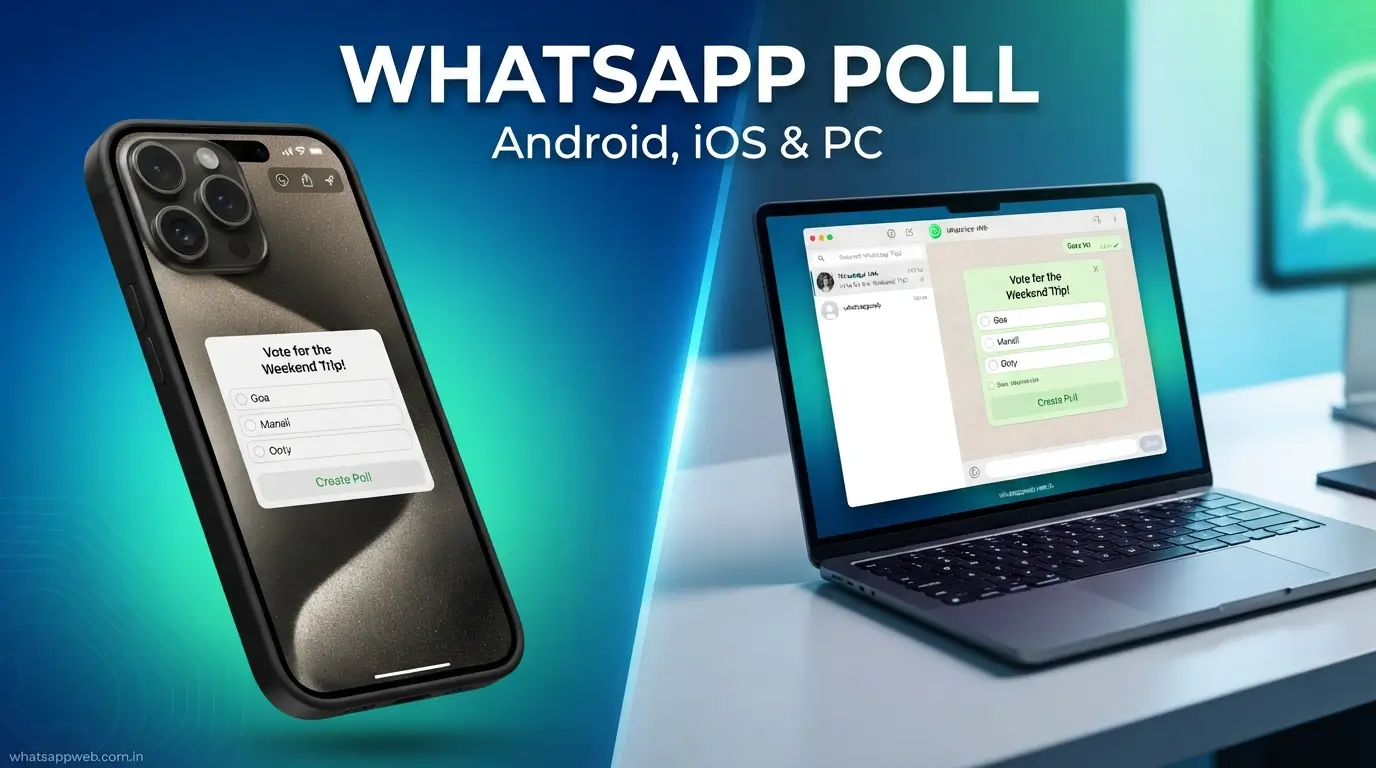
With millions of people relying on WhatsApp for personal conversations, business communication, education, and community engagement, the platform has become much more than a simple messaging app. One of its most practical features is the ability to create polls directly within chats, allowing users to gather opinions, make decisions, and organize activities without relying on third-party tools. Whether you’re planning a family gathering, scheduling a team meeting, choosing a travel destination, or collecting quick feedback from customers, learning how to create poll in WhatsApp can save time and keep conversations organized. Instead of scrolling through dozens of replies, participants can cast their votes with a single tap, making decision-making faster, clearer, and more efficient.
The built-in polling feature is designed to work seamlessly across group chats, individual conversations, communities, and even WhatsApp Desktop, making it accessible regardless of the device you use. A well-designed poll helps eliminate confusion, encourages participation, and presents results in real time so everyone can stay informed. Throughout this guide, you’ll discover not only how to create poll in WhatsApp on Android, iPhone, and desktop devices but also learn WhatsApp poll feature, WhatsApp group poll, WhatsApp voting, WhatsApp survey, poll results, group decision making, and multiple-choice poll best practices.
What Is a WhatsApp Poll?
A WhatsApp poll is a built-in interactive feature that allows users to ask a question and provide multiple answer choices directly within a chat. Instead of asking participants to reply with separate messages, everyone can cast their vote by selecting one or more options, making conversations more organized and efficient. Whether you’re planning an event, collecting opinions, scheduling meetings, or making quick group decisions, learning how to create poll in WhatsApp can significantly improve communication. The integrated poll feature eliminates the need for third-party applications, allowing users to create and manage polls seamlessly within WhatsApp while keeping all responses in one place.
How WhatsApp Polls Work
WhatsApp polls are designed to simplify decision-making by allowing users to create a question with up to 12 answer options that participants can vote on instantly. Once a poll is created and shared, everyone in the chat can view the available choices and select the option that best matches their opinion. Depending on the settings, users can either choose a single answer or multiple answers, making the feature suitable for various scenarios such as event planning, customer feedback, classroom discussions, and team collaboration.
After participants begin voting, the poll results update automatically in real time, allowing everyone in the conversation to see the latest outcome without refreshing the chat. Users can also change their votes if they reconsider their decision, ensuring that the results accurately reflect current preferences. Whether you’re conducting a WhatsApp survey for customer feedback or using a group poll to decide on a meeting location, WhatsApp makes the entire process simple, transparent, and accessible across Android, iPhone, and Desktop devices.
Where You Can Create Polls
WhatsApp makes it easy to create polls in different types of conversations, giving users the flexibility to collect opinions and make decisions wherever discussions take place. Whether you’re chatting with family, coordinating with coworkers, or managing a large community, understanding how to create poll in WhatsApp allows you to take full advantage of the built-in poll feature. Since polls are integrated directly into the app, participants can vote instantly without downloading third-party applications or opening external links, making the process quick, secure, and user-friendly.
You can create polls in Group Chats, Personal Chats, Communities, and WhatsApp Desktop or WhatsApp Web. Group chats are ideal for creating a group poll to organize events, schedule meetings, or make collective decisions, while personal chats let you compare options with a single friend or colleague. Communities help administrators conduct a WhatsApp survey and gather feedback from larger groups, whereas WhatsApp Desktop offers the same functionality for users who prefer managing conversations from their computers.
Read Also:how to create poll in WhatsApp
How to Create a Poll in WhatsApp on Android
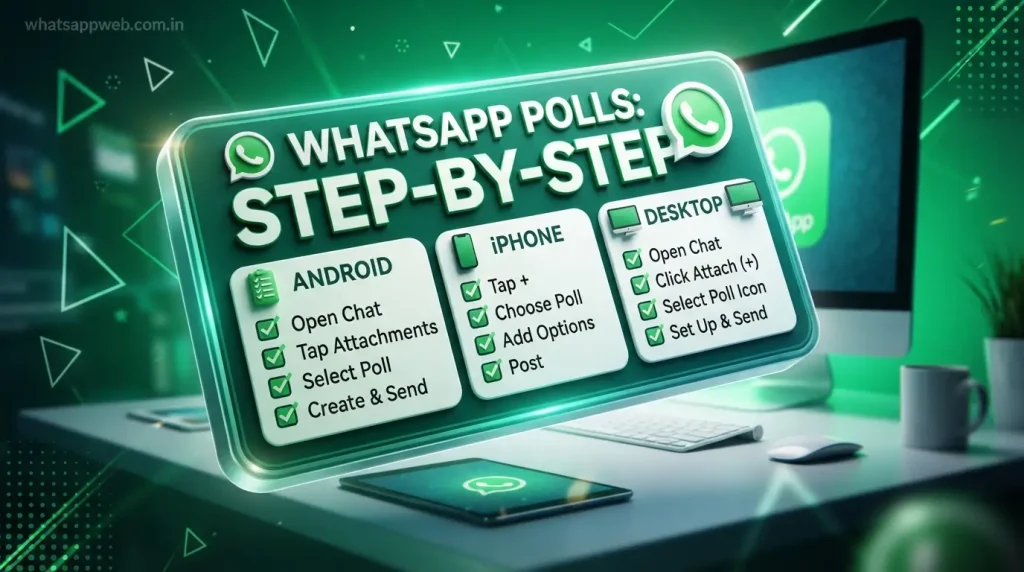
Creating a poll on an Android device is a simple process that takes only a few minutes. WhatsApp includes a built-in poll feature that allows you to create interactive polls without installing any third-party apps. Whether you want to organize an event, gather opinions, or make quick group decisions, learning how to create poll in WhatsApp on Android helps you communicate more efficiently. Before getting started, make sure you’re using the latest version of WhatsApp so you can access all the latest features and improvements.
Step 1: Open the Chat
Begin by opening the WhatsApp application on your Android smartphone. Once the app launches, navigate to the conversation where you want to create your poll. This can be a group chat, a personal conversation, or a community group, depending on who you want to participate in the voting.
Choosing the correct chat is important because the poll will only be visible to the members of that conversation. Before creating the poll, think about your audience and ensure that everyone who needs to vote has access to the chat. This makes the WhatsApp voting process smooth and ensures that all participants can respond easily.
Step 2: Tap the Attachment Icon
Inside the selected chat, locate the paperclip or attachment icon next to the message box. Tap this icon to open a menu containing different sharing options, such as Document, Camera, Gallery, Location, Contact, and Poll. The attachment menu is where you’ll find the option to create a new poll.
If you don’t see the Poll option, your WhatsApp version is likely outdated. Updating the app through the Google Play Store usually resolves this issue and enables the latest poll feature. Keeping WhatsApp updated also improves security, performance, and access to new features.
Step 3: Select Poll
From the attachment menu, tap Poll to open the poll creation screen. This page allows you to enter your question, add answer choices, and customize the poll before sending it to the chat. The interface is simple and designed to help users create polls quickly, even if it’s their first time using the feature.
The poll creation screen is where you can build a clear and engaging group poll for friends, family members, coworkers, or community participants. Taking a few extra moments to review your question and answer options before moving to the next step helps ensure that participants understand exactly what you’re asking.
Step 4: Add Question and Options
Type your question in the designated field, making sure it is short, clear, and easy to understand. A well-written question encourages higher participation and reduces confusion among voters. After entering the question, add your answer options one by one. WhatsApp allows you to include up to 12 different choices, making it suitable for a wide range of topics.
Arrange the options in a logical order and avoid adding duplicate or similar answers that could confuse participants. If you’re creating a WhatsApp survey to gather feedback, keep the answer choices relevant and straightforward so users can respond quickly. Clear questions and organized options lead to more accurate and meaningful poll results.
Step 5: Send the Poll
After reviewing your question and answer options, tap the Send button to publish the poll in the selected chat. The poll will appear instantly, allowing participants to begin voting immediately. Once shared, every member of the conversation can view the poll, cast their vote, and see the results update in real time.
Before sending the poll, double-check your question, answer choices, and voting settings because WhatsApp does not allow polls to be edited after they are published. By following these simple steps, you’ll create a poll in WhatsApp on Android and make it easier for your group to collaborate, share opinions, and make decisions using the built-in WhatsApp voting system.
How to Create a Poll in WhatsApp on iPhone
Creating a poll on an iPhone is just as quick and convenient as it is on Android. WhatsApp includes the same built-in poll feature for iOS devices, allowing users to gather opinions, organize events, and make group decisions without relying on third-party applications. If you’re wondering how to create poll in WhatsApp on your iPhone, the process only takes a few simple steps. Before you begin, make sure you have the latest version of WhatsApp installed to access all available features.
Using the “+” Button
To get started, open WhatsApp on your iPhone and navigate to the chat where you want to create the poll. This can be a personal conversation, a group chat, or a community group. Once you’ve opened the chat, tap the “+” button located on the left side of the message box. A menu will appear with several options, including Photos, Camera, Documents, Location, Contact, and Poll.
Select Poll from the list to access the poll creation screen. If the Poll option isn’t visible, check whether your app is updated through the App Store, as older versions may not support this feature. Keeping WhatsApp updated ensures you can use the latest poll feature and enjoy improved performance and security.
Creating Your Poll
After selecting the Poll option, you’ll be prompted to enter your question and add answer choices. Write a clear, specific question that participants can easily understand, then add the available options. WhatsApp allows you to include up to 12 answer choices, giving you enough flexibility for event planning, business discussions, or gathering opinions through a WhatsApp survey.
You can also rearrange the answer choices by dragging them into your preferred order before sending the poll. If needed, choose whether participants can select one answer or multiple answers, depending on the purpose of your poll. Taking a moment to review your question and options helps ensure that your poll is easy to understand and encourages accurate responses.
Sending the Poll
Once you’ve entered your question and answer choices, review everything carefully to make sure the information is correct. When you’re satisfied with the poll, tap the Send button to share it with the selected chat. The poll will appear instantly, allowing participants to begin voting immediately using the built-in WhatsApp voting system.
Remember that WhatsApp polls cannot be edited after they have been sent, so it’s important to double-check your question, answer options, and voting settings beforehand. By following these steps, you’ll successfully learn how to create poll in WhatsApp on an iPhone and use the app’s built-in tools to collect feedback, organize activities, and make group decisions quickly and efficiently.
How to Create a Poll on WhatsApp Desktop
Creating a poll on WhatsApp Desktop is just as simple as using the mobile app. Whether you’re working from a Windows PC, a Mac, or accessing WhatsApp through your web browser, the built-in poll feature lets you create polls without switching to your phone. If you frequently use WhatsApp for work, business communication, or team collaboration, learning how to create poll in WhatsApp on your desktop can save time and improve productivity. The desktop version offers the same core functionality as the mobile app, allowing you to create, send, and manage polls with ease.
Windows
If you’re using the WhatsApp Desktop application on a Windows computer, open the app and navigate to the chat where you want to create your poll. This can be a group chat, a personal conversation, or a community group. Click the plus (+) or attachment icon next to the message box and select Poll from the available options to open the poll creation screen.
Next, enter your question and add up to 12 answer options. You can rearrange the choices, decide whether participants can select multiple answers, and review the poll before sending it. Once everything looks correct, click the Send button to share your poll. The built-in WhatsApp voting system immediately allows participants to cast their votes and view live results within the conversation.
Mac
Mac users can also create polls directly through the WhatsApp Desktop application. Start by opening WhatsApp on your Mac and selecting the chat where you’d like to post the poll. Click the plus (+) icon beside the message field, then choose Poll to access the poll creation window.
After opening the poll editor, type your question and enter the available answer choices. Review your entries carefully before sending because WhatsApp doesn’t allow polls to be edited once they’re published. Whether you’re organizing meetings, collecting feedback, or conducting a WhatsApp survey, the Mac application makes the process quick, convenient, and easy to manage.
WhatsApp Web
If you prefer using WhatsApp in your browser, you can create polls through WhatsApp Web without installing any software. Open your preferred browser, visit WhatsApp Web, and link your account by scanning the QR code with your mobile device if you haven’t already. Then, open the chat where you want to create the poll and click the attachment icon beside the message box.
Select Poll, enter your question, add your answer options, and configure the voting settings before clicking Send. The poll will instantly appear in the selected conversation, allowing participants to vote in real time. By using the same poll feature available on mobile devices, WhatsApp Web provides a seamless experience for users who spend most of their day working from a computer while learning how to create poll in WhatsApp across every supported platform.
How to Vote in a WhatsApp Poll
Voting in a WhatsApp poll is quick, simple, and available on Android, iPhone, WhatsApp Desktop, and WhatsApp Web. Once someone shares a poll in a chat, all eligible participants can cast their vote directly within the conversation without using any external apps. After learning how to create poll in WhatsApp, it’s equally important to understand how the WhatsApp voting process works so you can participate effectively and make informed decisions in group or personal chats.
Selecting Answers
To vote in a WhatsApp poll, open the conversation containing the poll and review the available question and answer options. Simply tap or click the option you want to select. If the poll creator has enabled multiple selections, you can choose more than one answer. Otherwise, you’ll only be able to select a single option. The poll feature makes voting intuitive, allowing users to respond with just a few taps or clicks.
Once you’ve selected your answer, your vote is submitted immediately, and the poll results are updated in real time. Every participant in the conversation can see the latest voting results, making it easy to understand the group’s preferences. Whether you’re participating in a group poll for event planning or responding to a quick question in a personal chat, the voting process is fast, transparent, and user-friendly.
Changing Your Vote
One of the most useful aspects of WhatsApp polls is the ability to change your vote after you’ve submitted it. If you change your mind or accidentally select the wrong option, simply reopen the poll and tap or click your preferred answer. WhatsApp will automatically update your selection without requiring you to create a new vote.
This flexibility makes the WhatsApp survey feature more accurate because participants can adjust their responses as circumstances change or new information becomes available. Since poll results update instantly, everyone in the conversation always sees the most current outcome. Understanding this feature ensures that after learning how to create poll in WhatsApp, you can also participate confidently and keep your vote aligned with your latest decision.
Best Tips for Creating Effective WhatsApp Polls
Creating a successful WhatsApp poll involves more than simply asking a question. To get accurate responses and encourage maximum participation, your poll should be clear, relevant, and easy to understand. Whether you’re using polls for personal conversations, business discussions, or community engagement, following a few best practices can significantly improve the quality of your results. After learning how to create poll in WhatsApp, applying these tips will help you make the most of the built-in poll feature, increase WhatsApp voting participation, and create meaningful group polls that support better planning and decision-making.
Best Tips for Creating Effective
- Write clear and specific questions so participants immediately understand the purpose of the poll without needing additional explanation or clarification.
- Keep answer choices short, relevant, and easy to compare, allowing users to vote quickly and confidently without confusion.
- Limit the number of options to only the most relevant choices, preventing participants from feeling overwhelmed while making decisions.
- Avoid using similar or overlapping answers that may confuse voters and reduce the accuracy of your WhatsApp survey results.
- Choose single-answer polls when selecting one final option, such as meeting dates, event venues, or competition winners.
- Enable multiple-answer polls when participants may have several preferences, availability options, or acceptable solutions to choose from.
- Review your question and answer choices carefully before sending because WhatsApp does not allow editing polls after publication.
- Use polls for planning meetings, organizing events, collecting customer feedback, and simplifying group decisions with efficient WhatsApp voting.
- Encourage participants to vote promptly so real-time results accurately reflect everyone’s opinions and help groups make faster decisions together.
- Analyze poll results after voting ends to identify trends, gather valuable insights, and make informed decisions based on participant responses.
Common Problems and How to Fix Them
Although WhatsApp polls are easy to use, you may occasionally encounter issues that prevent you from creating, sending, or managing them. Most of these problems are caused by outdated app versions, temporary software glitches, or unsupported features rather than serious technical faults. If you’ve already learned how to create poll in WhatsApp but are experiencing difficulties, the solutions below will help you troubleshoot the most common problems. By understanding how the built-in poll feature works, you can quickly resolve issues and continue using WhatsApp voting without interruptions.
Poll Option Missing
One of the most common issues is not seeing the Poll option in the attachment or sharing menu. This usually happens because you’re using an outdated version of WhatsApp or your device hasn’t received the latest feature update. In some cases, the feature may also be unavailable if your operating system is no longer supported.
To fix this problem, update WhatsApp from the Google Play Store or Apple App Store and restart the application after the update is complete. If the Poll option is still missing, check whether your device meets WhatsApp’s minimum system requirements. Keeping your app updated ensures access to the latest poll feature along with important security and performance improvements.
Can’t Create Poll
If WhatsApp won’t let you create a poll, first verify that you’re creating it in a supported chat. Polls can be created in group chats, personal chats, communities, WhatsApp Desktop, and WhatsApp Web, provided you’re using a compatible version of the app. Poor internet connectivity or temporary software glitches can also prevent the poll creation screen from opening.
Try closing and reopening WhatsApp, reconnecting to a stable Wi-Fi or mobile data network, and restarting your device if the issue continues. If necessary, clear the app cache on Android or reinstall WhatsApp after backing up your chats. These steps usually resolve issues and restore the WhatsApp survey and polling functions.
Poll Not Sending
Sometimes a poll is created successfully but fails to send to the chat. This issue is commonly caused by a weak internet connection, temporary WhatsApp server problems, or connectivity interruptions during the sending process. If the poll remains pending for an extended period, the message may never be delivered.
Start by checking your internet connection and switching between Wi-Fi and mobile data if needed. You can also verify whether WhatsApp is experiencing a temporary service outage. Once your connection is stable, resend the poll. A reliable connection helps ensure that your group poll reaches participants immediately and allows them to begin WhatsApp voting without delays.
Can’t Edit a Poll
Many users look for an edit option after sending a poll, only to discover that it isn’t available. This isn’t a technical issue but rather a limitation of WhatsApp itself. Once a poll has been published, the question, answer options, and voting settings cannot be modified.
If you notice a mistake after sending the poll, the only solution is to delete it if possible and create a new one with the correct information. Before publishing any poll, carefully review your question and answer choices to avoid errors. Taking a few extra moments to check everything can save time and prevent confusion later.
Update WhatsApp
Running an outdated version of WhatsApp is one of the leading causes of missing features and unexpected errors. New updates often include improvements to the poll feature, bug fixes, enhanced security, and better compatibility with the latest Android, iPhone, Windows, and Mac operating systems.
To keep WhatsApp functioning properly, regularly check for updates through the Google Play Store, Apple App Store, Microsoft Store, or your device’s software update settings. Installing the latest version not only helps resolve issues but also ensures you can continue using how to create poll in WhatsApp and other new features without compatibility problems or performance issues.
WhatsApp Poll Limitations
While WhatsApp polls are a convenient way to gather opinions and make group decisions, they do have a few limitations that users should understand before creating one. Knowing these restrictions helps you set realistic expectations and avoid common mistakes when using the built-in poll feature. After learning how to create poll in WhatsApp, it’s equally important to recognize what the feature can and cannot do. Understanding these limitations ensures you use WhatsApp voting more effectively and create polls that deliver accurate, transparent, and meaningful results.
- WhatsApp allows a maximum of 12 answer options, limiting polls that require extensive choices or detailed questionnaires.
- Poll questions, answer options, and settings cannot be edited once the poll has been sent to the chat.
- Anonymous voting is not supported, meaning participants can see who voted for each available answer option.
- Poll results are visible to everyone in the conversation, ensuring complete transparency throughout the WhatsApp voting process.
- Users can change their votes after submitting, causing poll results to update automatically in real time for all participants.
- Polls are available only in supported WhatsApp versions, requiring users to keep the application updated regularly.
- There is no built-in option to schedule polls for future publication within WhatsApp chats or communities automatically.
- WhatsApp doesn’t provide advanced analytics, charts, or downloadable reports for poll responses and voting statistics.
- Poll creators cannot restrict voting based on user roles, permissions, or participant eligibility within standard chats.
- Polls depend on an active internet connection, so participants must be online to vote and view updated results.
Frequently Asked Questions
Can I create a poll in a private WhatsApp chat?
Yes. WhatsApp allows you to create polls in both private and group chats using the built-in poll feature.
Can I edit a WhatsApp poll after sending it?
No. Once a poll is sent, it cannot be edited. If you need to make changes, you’ll have to create a new poll.
How many options can I add to a WhatsApp poll?
You can add up to 12 answer options in a single poll, making it suitable for most voting and survey needs.
Can users select multiple answers?
Yes. When creating the poll, you can choose whether participants can select one answer or multiple answers.
Why can’t I see the Poll option?
This usually happens if you’re using an outdated version of WhatsApp. Updating the app often restores the poll feature.
Conclusion
Learning how to create poll in WhatsApp is an easy way to make conversations more interactive and organized. Whether you’re planning an event, gathering feedback, or making group decisions, the built-in poll feature allows you to collect responses quickly without relying on third-party apps. Since polls are available on Android, iPhone, WhatsApp Desktop, and WhatsApp Web, you can create and manage them from virtually any device.
By following the steps and tips in this guide, you can create clear polls, encourage active WhatsApp voting, and avoid common issues. Remember to keep your questions simple, review your options before sending, and use polls whenever you need fast and reliable feedback. Now that you know how to create poll in WhatsApp, you can confidently use this feature to improve communication and make better decisions in both personal and professional conversations.
