

If you’re searching for how to log out of WhatsApp, you’re not alone. Millions of users want to know how to sign out of their WhatsApp account for various reasons, such as protecting their privacy, switching to a different device, or ensuring that no one else can access their conversations. While logging out of most messaging apps is as simple as tapping a button, WhatsApp works differently. Its mobile app is designed to keep users continuously connected, which often confuses when people look for a traditional logout option. Understanding how WhatsApp manages your account across different devices is the first step toward using the platform more securely and efficiently.
Whether you’re using WhatsApp Web, WhatsApp Desktop, an Android phone, or an iPhone, the process for signing out varies. Desktop and web versions include a dedicated logout feature, while the mobile app requires different approaches because it is linked directly to your phone number rather than a username and password. This distinction is important, especially if you’ve recently used WhatsApp on a shared computer or public device and want to end your session immediately. Knowing the correct method for each platform helps protect your personal messages, media files, and account information from unauthorized access.
Can You Log Out of WhatsApp?
If you’re wondering how to log out of WhatsApp, the answer depends on the device you’re using. Unlike many messaging apps that offer a simple logout button, WhatsApp is designed to keep users signed in on their smartphones for a seamless messaging experience. While you can easily log out of WhatsApp Web and WhatsApp Desktop, Android and iPhone users won’t find a dedicated logout option within the app. Instead, WhatsApp relies on your phone number as your account identity, allowing you to stay connected and receive messages without needing to sign in every time you open the app. Understanding how WhatsApp manages your sessions will help you choose the right method for protecting your WhatsApp account and maintaining your privacy.
Why WhatsApp Doesn’t Include a Logout Button on Android and iPhone
One of the biggest reasons people search for how to log out of WhatsApp is that they can’t find a logout button on their Android or iPhone. This isn’t a missing feature—it’s an intentional design choice. Unlike traditional messaging platforms that use usernames and passwords, WhatsApp authenticates users through their phone number. Once your number is verified, the app remains connected to your account so you can receive messages, voice calls, and video calls instantly without repeatedly logging in.
This always-connected approach improves convenience and ensures that notifications are delivered in real time. If users had to log in every time they wanted to send or receive a message, the experience would be much less reliable. Although the lack of a logout button may seem unusual, it helps WhatsApp provide uninterrupted communication while keeping your WhatsApp login active in the background. If you need to stop using the app temporarily, you’ll have to rely on alternative methods instead of a traditional logout feature.
Difference Between Logging Out, Unlinking Devices, and Uninstalling the App
Many users assume that logging out, unlinking a device, and uninstalling WhatsApp all achieve the same result, but these actions are quite different. Logging out is available only on WhatsApp Web and the desktop application, where it simply ends the active session on that specific computer or browser. Your chats and account remain safe on your phone, and you can reconnect later by scanning a QR code.
Unlinking linked devices removes a connected browser or desktop app from your WhatsApp account remotely, making it an excellent option if you’ve forgotten to log out from a shared computer. Uninstalling the mobile app, on the other hand, removes WhatsApp from your phone entirely. While your account remains active unless you delete it, you’ll need to reinstall the app and verify your phone number before accessing your chats again. Understanding these differences helps you choose the safest option based on your needs without risking unnecessary data loss.
How WhatsApp Keeps Users Signed In
WhatsApp keeps users signed in by securely storing authentication information on their mobile devices after the initial verification process. Instead of requiring you to enter a username and password each time you open the app, WhatsApp recognizes your verified phone number and automatically restores access to your account. This system allows you to receive messages, calls, and notifications instantly, even after restarting your device.
In addition to your smartphone, WhatsApp also allows you to connect multiple linked devices, including computers and tablets, through the Linked Devices feature found in the WhatsApp settings. These companion devices remain connected until you manually remove them or log out. Regularly checking your connected devices is a good security practice, especially if you’ve used WhatsApp on a public or shared computer. By understanding how WhatsApp manages active sessions, you can better protect your privacy while using the app across multiple devices.
Read Also: How to log out of WhatsApp
How to Log Out from WhatsApp Web
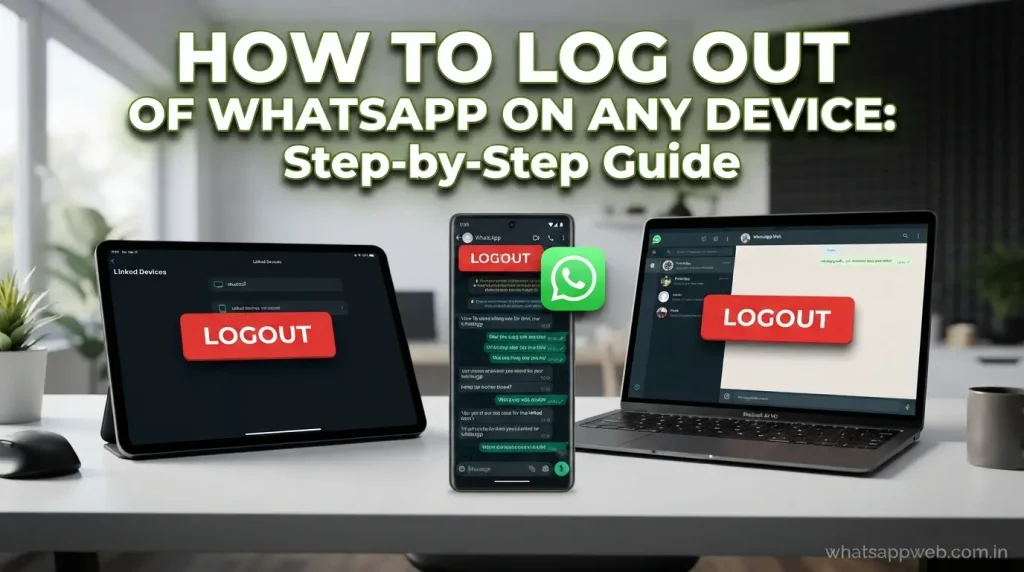
If you’re looking for how to log out of WhatsApp, the web version offers the simplest solution. Unlike the mobile app, WhatsApp Web includes a dedicated logout option that lets you end your session in seconds. Whether you’re using a personal computer, an office laptop, or a shared device, signing out is an important step to keep your conversations private. In addition to logging out directly from the browser, you can also remove active sessions remotely using your smartphone through the Linked Devices feature.
Log Out Directly from WhatsApp Web
Logging out directly from WhatsApp Web is the fastest method when you’re using the same computer where your account is currently open. Once you sign out, the browser session ends immediately, and anyone who wants to access your messages again must scan the QR code with your phone. This method is recommended whenever you finish using WhatsApp on a shared or public computer.
Follow these steps to log out of WhatsApp Web:
- Open WhatsApp Web in your browser.
- Click the Menu icon (three dots) located above the chat list.
- Select Log out from the drop-down menu.
- Wait a few seconds until the session closes.
- Verify that the QR code screen appears, confirming you have successfully logged out.
Log Out Remotely Using Your Phone
If you forgot to log out from another computer, you can disconnect the session without returning to that device. WhatsApp allows you to manage all active browser and desktop sessions through the Linked Devices section, making it easy to secure your WhatsApp account from anywhere. This feature is especially useful if you accidentally left your account open on a work computer or a public device.
To disconnect a browser session, open WhatsApp on your phone and go to the Linked Devices section from the menu on Android or the WhatsApp settings page on iPhone. You’ll see a list of all connected devices, including information about the browser, operating system, and last active time. Select the device you want to remove and tap Log Out. The selected session will be disconnected instantly, preventing anyone from accessing your chats without scanning the QR code again.
What Happens After Logging Out?
After completing how to log out from WhatsApp on the web version, the selected browser session is terminated immediately. Messages stop syncing with your computer, and your conversations are no longer accessible from that browser. Instead, the WhatsApp Web login page displays a QR code, requiring authentication before the account can be used again.
Logging out only affects the browser session and does not delete your chats, contacts, media files, or account information. Your WhatsApp login on your smartphone remains active, and all conversations stay safely stored on your device. Whenever you want to use WhatsApp Web again, simply visit the website and scan the QR code using your phone to reconnect your account.
How to Log Out of Linked Devices Remotely
If you’ve searched for how to log out of WhatsApp because you forgot to sign out of a computer or suspect unauthorized access, remotely logging out of linked devices is the safest solution. WhatsApp allows you to view and manage every connected browser and desktop session directly from your smartphone. Through the Linked Devices section in your WhatsApp settings, you can remove any active session with a single tap, ensuring that your WhatsApp account remains secure. This feature is especially useful when using public or shared computers, as it prevents others from accessing your chats after you’ve finished using the service.
- Open WhatsApp and access the Linked Devices section from the menu or WhatsApp settings.
- Review every connected device to identify unfamiliar browsers, computers, or recently active sessions.
- Tap the device you want to disconnect from your WhatsApp account.
- Select Log Out to immediately remove the chosen linked device from your account.
- Confirm the logout request if WhatsApp asks for verification before disconnecting the session.
- Check that the removed device no longer appears in your active devices list.
- Repeat the process for every unknown or unused connected device to improve account security.
- Enable two-step verification to add another layer of protection for your WhatsApp login.
- Avoid leaving WhatsApp Web signed in when using public or shared computers.
- Regularly review your linked devices to ensure only trusted devices remain connected to your account.
How to Log Out from WhatsApp Desktop
If you’re searching for how to log out of WhatsApp, the desktop application offers a quick and secure way to end your session. Whether you’re using a Windows PC or a Mac, the WhatsApp Desktop app includes a built-in logout option that disconnects your computer from your WhatsApp account without affecting the mobile app. Logging out is recommended whenever you use a shared or public computer, as it helps protect your chats and personal information from unauthorized access. Once logged out, you’ll need to scan a QR code with your phone to reconnect the desktop app.
Windows
Logging out of WhatsApp Desktop on Windows is a simple process that only takes a few moments. The logout feature is located within the application’s menu, allowing you to end your session safely without deleting your chats or account. This method is ideal if you’re finished using WhatsApp on your PC or want to switch to another computer.
To log out, open the WhatsApp Desktop application on your Windows computer and click the Settings or Menu icon, depending on your app version. Select Log Out and confirm your choice if prompted. The application will immediately disconnect from your WhatsApp login and display the QR code screen, indicating that the session has ended successfully.
Mac
The process of signing out from WhatsApp Desktop on a Mac is very similar to the Windows version. WhatsApp provides the same secure logout option, ensuring your account is removed from the computer while keeping all your chats safely stored on your smartphone. Logging out is especially important when using a shared Mac or before selling or handing over your device.
To sign out, launch WhatsApp Desktop on your Mac and click the Settings icon located within the application window. Choose Log Out from the available options and confirm your selection if required. After the session ends, the app returns to the QR code login screen, and your WhatsApp account remains active only on your mobile device until you choose to reconnect the desktop application.
How to Log Out from WhatsApp on iPhone
If you’re searching for how to log out of WhatsApp on an iPhone, it’s important to know that WhatsApp doesn’t provide a dedicated logout button for iOS devices. Instead, the app keeps your WhatsApp account signed in to ensure you receive messages and calls without interruption. If you want to stop using WhatsApp temporarily, you’ll need to remove the app after backing up your chats or disconnect any linked devices from your account. These methods help protect your privacy while keeping your data secure and allowing you to sign back in whenever needed.
WhatsApp on iPhone
- Back up your chats to iCloud before removing WhatsApp to prevent losing important conversations and media files.
- Open WhatsApp settings and verify that your backup completed successfully before uninstalling the application from your iPhone.
- Remove the WhatsApp app from your iPhone to effectively sign out of your active session.
- Open the Linked Devices section and disconnect unused computers or browsers for improved account security.
- Reinstall WhatsApp anytime and verify your phone number to restore access to your account and chats.
- Enable two-step verification to provide additional protection for your WhatsApp login and personal account information.
What Happens When You Log Out of WhatsApp?
Understanding what happens after you log out of WhatsApp is important to avoid confusion about your chats and account. Logging out affects different devices in different ways. If you sign out of WhatsApp Web or WhatsApp Desktop, only the selected session is disconnected, while your WhatsApp account remains active on your smartphone. On mobile devices, uninstalling the app or clearing app data does not delete your account but requires you to verify your phone number when signing in again. Your chats remain safe if you’ve created a recent backup, and any linked devices will stay connected unless you manually remove them.
Comparison Table.
| Action | Chats | WhatsApp Account | Linked Devices | Login Required Again? |
| Log out of WhatsApp Web | Chats remain on your phone | Remains active | Only selected browsers disconnect | Yes, scan the QR code |
| Log out of WhatsApp Desktop | Chats remain on your phone | Remains active | Only selected desktop disconnects | Yes, scan the QR code |
| Clear App Data (Android) | Restored from backup if available | Remains active | Stay connected unless removed | Yes, verify the phone number |
| Uninstall WhatsApp (iPhone) | Restored from backup after reinstall | Remains active | Stay connected unless manually removed | Yes, verify the phone number |
| Remove a Linked Device | No effect on chats | Remains active | Selected device disconnects | Yes, reconnect using the QR code |
| Delete WhatsApp Account | Permanently deleted after confirmation | Account removed | All devices disconnected | Yes, create a new account |
Common Problems and How to Fix Them
While learning how to log out of WhatsApp is generally straightforward, some users may encounter unexpected issues during the process. Depending on whether you’re using WhatsApp Web, WhatsApp Desktop, Android, or iPhone, the available logout options and troubleshooting steps can vary. Understanding the most common problems and their solutions can save time, protect your WhatsApp account, and ensure your personal conversations remain secure. Below are the issues users face most often, along with practical fixes that will help you regain control of your account.
Can’t Find the Logout Option
Many users become confused when they cannot find a logout button in the WhatsApp mobile app. This happens because WhatsApp is designed differently from many other messaging applications. On Android and iPhone, there is no dedicated logout option, as the app keeps your account signed in after verifying your phone number. However, WhatsApp Web and WhatsApp Desktop include a logout feature within their menus.
If you’re using a smartphone, the best alternative is to remove the app after backing up your chats or clear the app data on Android if appropriate. If your goal is to disconnect a browser or computer, open the Linked Devices section in WhatsApp settings and remove the active session from there. This approach provides the same security benefits as logging out without affecting your messages or contacts.
Linked Device Won’t Disconnect
Sometimes a connected browser or computer may still appear in your list of linked devices even after attempting to remove it. This can happen because of a temporary internet connection issue, a synchronization delay, or an outdated version of WhatsApp. In most cases, the session will disconnect after a few moments once both devices have an active internet connection.
To resolve this issue, make sure your phone is connected to the internet and running the latest version of WhatsApp. Then reopen the Linked Devices page and try removing the device again. If the problem continues, restart your phone and repeat the process. Updating the desktop or web session may also help ensure the logout request is processed successfully.
Forgot to Log Out on a Shared Computer
Forgetting to sign out after using WhatsApp on a public or shared computer is a common concern. Fortunately, you don’t need physical access to that computer to protect your privacy. WhatsApp allows you to remotely disconnect any active browser or desktop session through the Linked Devices feature, making it easy to secure your WhatsApp account from anywhere.
Open WhatsApp on your smartphone, navigate to the Linked Devices section, and review the list of connected devices. Select the computer you no longer trust and tap Log Out. The session ends immediately, preventing anyone from viewing your conversations. To reduce future risks, always log out before leaving a shared device and enable two-step verification for added account security.
WhatsApp Logged Out Unexpectedly
Occasionally, users may notice that WhatsApp Web or WhatsApp Desktop has logged out without warning. This can occur after reinstalling WhatsApp, changing your phone number, updating the app, remaining inactive for an extended period, or experiencing connection issues between your phone and the linked device. In most cases, this behavior is normal and designed to maintain account security.
If you were logged out unexpectedly, simply open WhatsApp on your phone, go to the Linked Devices section, and scan the QR code displayed on your computer to reconnect. Before signing in again, verify that you’re using the latest version of WhatsApp on both your phone and computer. Keeping your software updated and maintaining a stable internet connection will help prevent unexpected logout issues in the future.
Tips to Keep Your WhatsApp Account Secure
Learning how to log out of WhatsApp is only one part of protecting your privacy. Keeping your WhatsApp account secure also requires good security habits, such as reviewing linked devices, enabling additional verification features, and avoiding untrusted devices. Cybercriminals often target messaging accounts because they contain personal conversations and sensitive information. By following a few simple precautions, you can reduce the risk of unauthorized access, protect your messages, and ensure your WhatsApp login remains secure whether you’re using a smartphone, computer, or WhatsApp Web.
Tips to Keep Your WhatsApp
- Enable two-step verification to add an extra security layer beyond your regular WhatsApp login credentials and phone number verification.
- Regularly review your linked devices and remove any unfamiliar computers or browsers immediately to prevent unauthorized account access.
- Always log out of WhatsApp Web after using shared, public, or workplace computers to protect your conversations and privacy.
- Keep WhatsApp updated to the latest version for improved security features, bug fixes, and protection against known vulnerabilities.
- Never share your WhatsApp verification code with anyone, even if they claim to represent WhatsApp support or customer service.
- Use a strong device passcode, Face ID, or Touch ID to prevent unauthorized access to your smartphone and messages.
- Avoid connecting your WhatsApp account to untrusted computers or public networks without proper security precautions in place.
- Back up your chats regularly to iCloud or Google Drive so you can restore important conversations after reinstalling WhatsApp.
- Monitor account activity and disconnect suspicious linked devices immediately if you notice unfamiliar logins or unexpected sessions.
- Be cautious of phishing messages and suspicious links that attempt to steal your personal information or WhatsApp account access.
Frequently Asked Questions
Can I log out of WhatsApp without deleting the app?
No. How to log out of WhatsApp on Android or iPhone isn’t possible through a logout button. You can only remove linked devices or uninstall the app.
Why doesn’t WhatsApp have a logout button?
WhatsApp keeps your WhatsApp account signed in using your verified phone number for seamless messaging and notifications.
Will I lose my chats if I log out?
No. Logging out of WhatsApp Web or Desktop doesn’t delete chats. Mobile chats can be restored from a backup after reinstalling.
Can I remotely log out of WhatsApp Web?
Yes. Open the Linked Devices section, select the connected device, and tap Log Out.
How can I secure my WhatsApp account?
Enable two-step verification, review linked devices regularly, and keep your WhatsApp login and app updated.
Conclusion
Understanding how to log out of WhatsApp is essential for protecting your privacy and keeping your conversations secure across different devices. While Android and iPhone don’t offer a traditional logout button, you can easily sign out of WhatsApp Web and WhatsApp Desktop or remotely disconnect linked devices whenever needed.
By following the steps and security tips in this guide, you can manage your WhatsApp account with confidence. Regularly reviewing connected devices, enabling two-step verification, and keeping your WhatsApp login secure will help safeguard your personal information and ensure that only you have access to your account.
