

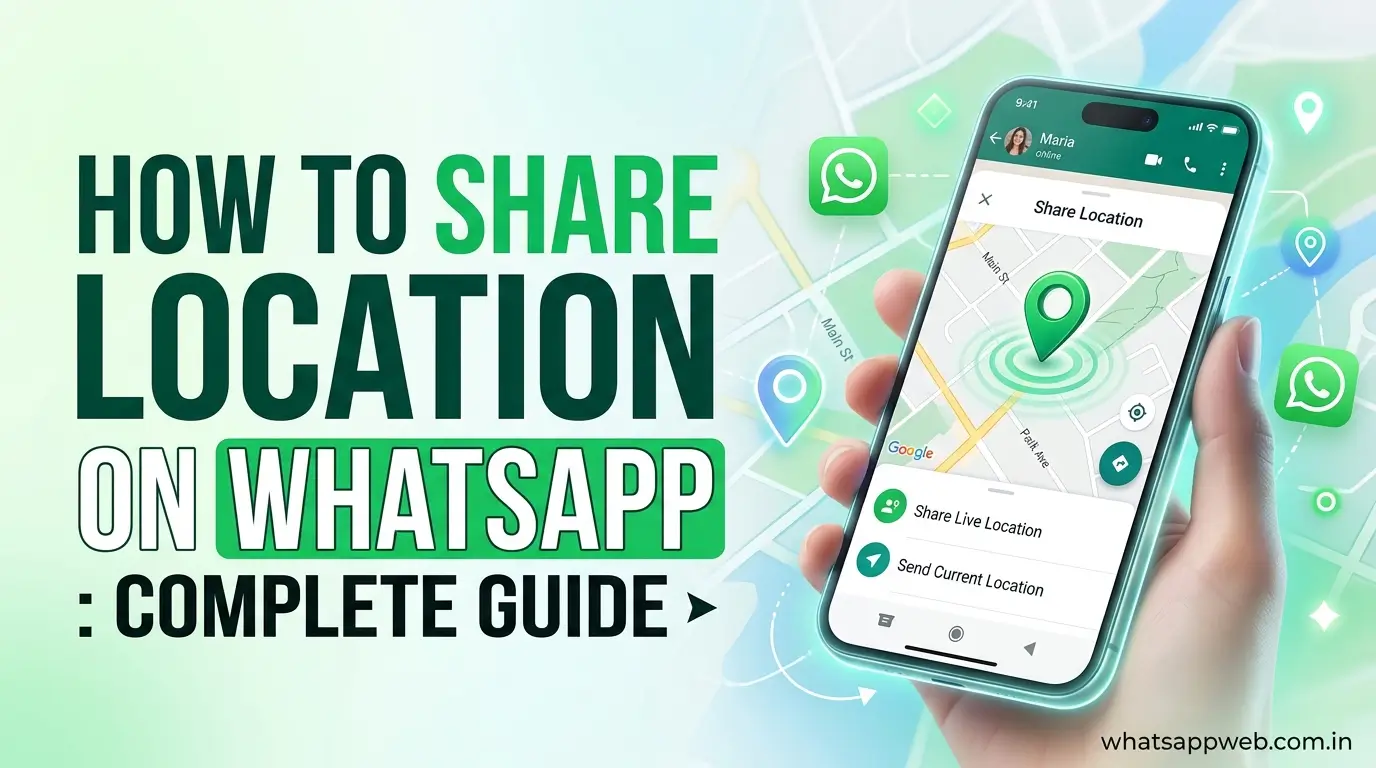
In today’s connected world, location sharing has become an essential part of everyday communication. Whether you’re meeting friends at a crowded venue, coordinating with family members during a trip, guiding a delivery driver to your exact address, or ensuring someone can follow your journey safely, WhatsApp offers one of the easiest ways to share your whereabouts. This feature eliminates the need for lengthy directions, screenshots, or repeated phone calls by allowing users to send their exact position directly within a chat. As a result, millions of people search for how to share location on WhatsApp to make their communication faster, safer, and more convenient.
One of the biggest reasons users rely on WhatsApp’s location-sharing feature is its simplicity. With just a few taps, you can send your exact position to an individual contact or an entire group. The platform uses your smartphone’s GPS technology to provide highly accurate location data, making it easier for recipients to find you without confusion. Whether you’re navigating an unfamiliar city, organizing a meetup, attending an event, or traveling long distances, WhatsApp location sharing helps everyone stay informed in real time. The feature is available on both Android and iPhone devices, making it accessible to virtually all WhatsApp users worldwide.
What You Need Before Sharing Location on WhatsApp
Before learning how to share location on WhatsApp, it’s important to make sure your device is properly configured for location sharing. WhatsApp relies on your phone’s built-in location services and internet connectivity to accurately determine and share your position. If the necessary settings are disabled, the app may be unable to detect your whereabouts or provide accurate results. Taking a few moments to verify your device settings can help ensure a smooth and hassle-free experience when sending your location to friends, family members, or colleagues.
Enable Location Services
To use WhatsApp’s location-sharing feature, you must grant the app permission to access your device’s location. These WhatsApp location permissions allow the app to retrieve your position through your smartphone’s GPS and other location technologies. Without the appropriate permissions, WhatsApp may display errors, fail to load maps, or prevent you from sharing your current location altogether.
On Android devices, you can enable location access by navigating to Settings > Apps > WhatsApp > Permissions and turning on Location access. iPhone users can go to Settings > WhatsApp > Location and choose “While Using the App” for optimal functionality. Enabling these location services ensures WhatsApp can accurately detect your position whenever you need to share it.
Ensure Internet and GPS Are Active
Even if location permissions are enabled, WhatsApp still requires an active internet connection and properly functioning GPS location settings to share accurate location information. The app uses GPS data along with Wi-Fi and mobile network information to pinpoint your position and transmit it to recipients in real time. If either GPS or internet connectivity is unavailable, location sharing may become inaccurate or fail.
Before attempting to share location on WhatsApp, verify that your device’s GPS is turned on and that you have access to either Wi-Fi or mobile data. Strong connectivity helps WhatsApp update your location quickly and improves the accuracy of GPS location tracking. If you notice delays or incorrect locations, moving to an open area with a stronger GPS signal can often resolve the issue and improve the performance of your location services.
Read also: how to share location on WhatsApp
How to Share Your Current Location on WhatsApp
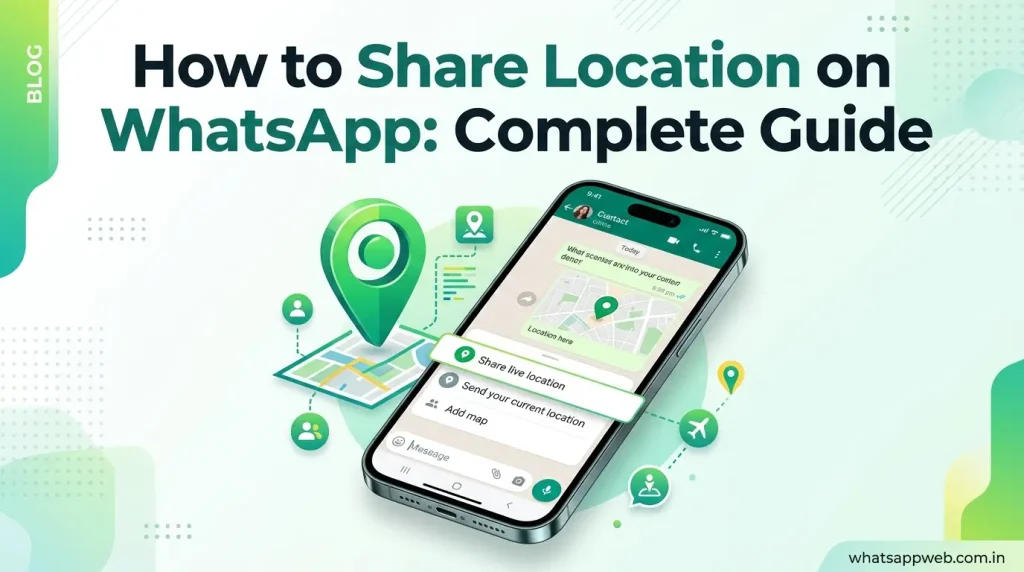
Once your device settings are configured correctly, learning how to share location on WhatsApp becomes a quick and straightforward process. WhatsApp allows users to instantly send current location information to individual contacts or group chats, making it easier to coordinate meetups, provide directions, or let others know exactly where they are. The feature works on both Android and iPhone devices and uses your phone’s GPS technology to share exact location details within seconds.
On Android
Android users can easily use the WhatsApp location feature to share their current position with others. To get started, open WhatsApp and navigate to the chat or group where you want to send your location. Tap the paperclip attachment icon, select “Location,” and wait for the app to detect your position. Once your location appears on the map, tap the option to send your current location.
After sending the location, the recipient will receive a map preview showing where you are at that specific moment. This method is particularly useful when you need to share exact location details for a meeting point, event venue, or address that may be difficult to describe through text alone. Since the location is static, it will not update if you move after sending it.
On iPhone
For iPhone users, the process is very similar and takes only a few taps. Open WhatsApp and select the conversation where you want to share your position. Tap the plus (+) icon located beside the message field, choose “Location,” and allow access to your device’s location if prompted. Then select the option to send your current location directly within the chat.
The WhatsApp location feature on iPhone is designed to provide accurate and reliable location sharing using Apple’s location services. Whether you’re meeting friends, coordinating with family members, or directing someone to your location, the app can quickly share exact location information without requiring additional apps or navigation tools. This makes communication more efficient and eliminates unnecessary confusion.
What Recipients See
When you send your current location through WhatsApp, recipients receive a map preview that displays your location at the exact moment it was shared. The message typically includes a clickable map, location details, and navigation options that can be opened in supported mapping applications. This allows recipients to quickly view and understand where you are.
Unlike live location sharing, the information provided through this WhatsApp location feature remains fixed and does not update as you move. Recipients can still use the map to navigate toward your position, making it an effective way to share exact location details for appointments, social gatherings, deliveries, business meetings, and many other situations where accurate directions are important.
How to Share a Different Location or Drop a Pin
Sometimes, when learning how to share a location on WhatsApp, you may need to send a location that is different from your current position. Instead of sharing where you are, WhatsApp allows you to search for a place, select a business, or manually drop a pin on the map. This feature is especially useful when directing someone to a meeting point, hotel, restaurant, office, event venue, or any destination you want others to find easily.
How to Share a Different Location
- Search for a restaurant location and share it instantly with friends planning to meet there later.
- Drop a pin manually when the exact destination does not appear in WhatsApp search results.
- Share hotel locations with family members before arriving at your accommodation during a trip.
- Send office locations to clients or coworkers for easier navigation and appointment coordination.
- Guide delivery drivers accurately by sharing a custom location pin instead of written directions.
- Share event venues with attendees to help everyone arrive at the correct location quickly.
- Mark parking spots on the map and share them with companions for easier vehicle retrieval.
- Send tourist attraction locations to travelers who need precise directions while exploring new areas.
- Share meeting points during outdoor activities where traditional addresses may not be available nearby.
- Use custom pins to identify pickup locations for rides, transportation services, or group gatherings.
Why WhatsApp Location Sharing Is Not Working
When users try to learn how to share location on WhatsApp, they sometimes encounter issues where the feature does not work as expected. In many cases, this problem is linked to device settings, connectivity issues, or outdated app versions. If you notice that WhatsApp location not working errors appear or you are unable to send your position, it usually means one or more required services are disabled. Understanding these common causes helps you quickly fix the issue and restore normal functionality.
Location Permission Disabled
One of the most common reasons users cannot share location on WhatsApp is the disabled app permission. Without proper access, WhatsApp cannot retrieve your device’s location data, which prevents the feature from functioning correctly. This directly affects both current location sharing and live tracking options.
To fix this issue, ensure that location permissions are enabled in your device settings. Go to your phone’s app permissions section and allow WhatsApp to access location while using the app. Once enabled, the WhatsApp location not working issue is often resolved immediately, and the feature begins functioning normally again.
GPS or Precise Location Turned Off
Another major cause of problems is a disabled GPS or inaccurate location settings. If your device is not using precise location services, WhatsApp may fail to detect your exact position or display incorrect results. This can lead to situations where live location unavailable errors appear during sharing attempts.
To fix this, make sure GPS is turned on and your device is set to high accuracy mode. Enabling precise location ensures WhatsApp can use satellite and network data together for better accuracy. Once activated, you should no longer face issues when trying to share your location on WhatsApp.
Poor Internet Connection
A weak or unstable internet connection can also prevent WhatsApp from sending your location properly. Since the app needs active data or Wi-Fi to transmit location information, interruptions may cause delays or failures in sharing. In such cases, users often report that they cannot share location even when the GPS is working correctly.
To resolve this, switch between mobile data and Wi-Fi or move to an area with a stronger signal. A stable connection ensures smooth communication between your device and WhatsApp servers. This helps prevent WhatsApp location not working issues caused by network instability.
Outdated WhatsApp Version
Using an outdated version of WhatsApp can also lead to location sharing failures. Older versions may not support updated location services or may contain bugs that affect functionality. This can result in errors or missing options when trying to share your position.
Updating WhatsApp to the latest version ensures compatibility with modern features, including improved live location unavailable fixes. Regular updates also enhance security and performance, making it easier to use all location-sharing tools without interruption.
Live Location Option Missing
In some cases, users may notice that the live location feature does not appear at all. This usually happens due to restricted permissions, outdated apps, or system-level limitations. When this occurs, users often report that live location unavailable prevents them from tracking movement in real time.
To fix this, first ensure all location permissions are enabled, and your app is updated. Restarting your device can also help restore missing features. Once corrected, you should be able to fully access how to share location on WhatsApp, including both static and live tracking options.
Current Location vs Live Location: What’s the Difference?
When learning how to share location on WhatsApp, it is important to understand the difference between current location and live location, as both serve different purposes depending on your needs. The WhatsApp location feature allows users to either send a single snapshot of their position or continuously share their movement in real time. Choosing the right option can improve communication, navigation accuracy, and safety in different situations.
Compression Table
| Feature | Current Location | Live Location |
| Type of Data | One-time snapshot | Real-time tracking |
| Updates | Does not update | Continuously updates |
| Duration | Sent once | 15 min, 1 hour, 8 hours |
| Internet Use | Minimal | Continuous |
| GPS Requirement | Basic GPS | High-accuracy GPS |
| Best Use Case | Meeting point or address sharing | Travel, tracking movement |
| Privacy Control | High | User-controlled, time-limited |
| Battery Usage | Low | Higher due to tracking |
| Accuracy | Fixed point | Dynamic and updated |
| Ideal For | Static location sharing | On-the-go location sharing |
Privacy and Safety Tips for WhatsApp Location Sharing
Understanding how to share location on WhatsApp is not only about using the feature correctly but also about using it safely and responsibly. Since location data is highly sensitive, WhatsApp provides several privacy controls to ensure users stay in control of their information. The WhatsApp location feature is designed to be secure, but users still need to be aware of who can access their data, how it is transmitted, and how to manage sharing settings effectively to avoid unwanted exposure.
Who Can See Your Location?
When you use WhatsApp live location or send your current position, only the selected contact or group members can view it. This means your location is not publicly visible and cannot be accessed by people outside the conversation. This helps ensure that location sharing privacy remains protected during everyday use.
It is important to remember that even though WhatsApp limits visibility, users should still be cautious about who they share their location with. Once you understand how to share location on WhatsApp, you should also be mindful of selecting trusted contacts only, especially when using real-time location features that continuously update your movements.
End-to-End Encryption
WhatsApp protects all location data using end-to-end encryption, which means only you and the intended recipient can view your shared location. Even WhatsApp itself cannot access or track your GPS location information during transmission, making the feature more secure than many other messaging platforms.
This encryption ensures that your WhatsApp location feature remains private while being shared in chats or groups. Whether you are sending a one-time pin or using live location sharing, the data is securely transmitted and cannot be intercepted or read by third parties.
Best Practices for Safe Sharing
To stay safe while learning how to share location on WhatsApp, it is important to follow certain best practices. Always share your location services data only with trusted individuals and avoid sending your location in public or unknown groups. Limiting access reduces the risk of misuse or unwanted tracking.
You should also regularly monitor active WhatsApp live location sessions and stop sharing once it is no longer needed. Using shorter time durations, such as 15 minutes instead of 8 hours, adds an extra layer of control. By applying these habits, you can safely use the WhatsApp location feature without compromising your privacy or security.
Pro Tips for Using WhatsApp Location Sharing Effectively
Mastering how to share location on WhatsApp becomes even more useful when you understand how to use it efficiently in real-life situations. The WhatsApp location feature is not just for sending your position; it can also improve communication, reduce confusion, and enhance safety when used strategically. By applying a few practical techniques, you can make location sharing faster, more accurate, and more reliable,e whether you are meeting friends, traveling, or coordinating work-related activities.
Pro Tips for Using WhatsApp
- Enable precise location for accurate tracking and faster real-time GPS updates in all situations instantly.
- Use live location sharing during travel to keep family members informed about your exact movements continuously.
- Share your current location when meeting friends to avoid confusion and reduce unnecessary communication delays instantly.
- Drop pins for unknown places like restaurants or hotels to guide others directly and efficiently.
- Turn off location sharing immediately after reaching the destination to protect your privacy and personal safety.
- Check the internet connection before sharing to ensure smooth and uninterrupted WhatsApp location transmission every time.
- Update WhatsApp regularly to access the latest location features and avoid bugs or outdated functionality issues.
- Use shorter live location duration for better control over privacy and reduce unnecessary background battery usage.
- Combine map apps with WhatsApp location sharing for more accurate navigation and faster route planning support.
- Always verify the recipient before sending location to ensure data is shared securely with trusted contacts only.
Frequently Asked Questions
Can I share my location on WhatsApp without GPS?
Yes, you can still send a rough location using network-based positioning, but it will be less accurate than GPS location sharing. WhatsApp may use Wi-Fi or mobile data to estimate your position when GPS is unavailable, but this can lead to incorrect results or delayed updates. For the best results when learning how to share location on WhatsApp, it is always recommended to enable GPS or precise location services.
How long can I share a live location?
WhatsApp allows users to share a live location for a limited time period. You can choose between 15 minutes, 1 hour, or 8 hours, depending on your needs and situation. Once the selected duration ends, the WhatsApp location feature automatically stops sharing your real-time movement.
Can I share a location in a WhatsApp group?
Yes, WhatsApp allows users to share both current and live locations in group chats. This feature is useful when coordinating meetups, travel plans, or events where multiple people need to know the same location. When using how to share location on WhatsApp in groups, every member of the group will be able to see the shared location.
Why is my WhatsApp location inaccurate?
Inaccurate location results usually happen due to weak GPS location signals, disabled location services, or poor internet connectivity. Buildings, indoor environments, and crowded areas can also affect accuracy.
Can someone track me after I stop sharing?
No, once you stop sharing or the timer ends, your live location sharing immediately stops and is no longer visible to anyone. WhatsApp does not continue tracking your movements after sharing is disabled.
Conclusion
Learning how to share location on WhatsApp gives you a simple yet powerful way to stay connected with others in real time. Whether you are sending a one-time position using the WhatsApp location feature or enabling live location sharing for continuous updates, the tool is designed to make coordination easier, faster, and more accurate in everyday life. By understanding the difference between current location, real-time location, and proper location services settings, you can avoid common issues and ensure smooth performance across both Android and iPhone devices. At the same time, applying privacy best practices helps you stay in control of who can see your location and for how long.
Overall, WhatsApp’s location-sharing tools are highly practical for travel, meetings, emergencies, and daily communication. When used correctly, they improve convenience while maintaining strong privacy and security, making them an essential feature for modern smartphone users.
